A slow Wi-Fi connection can be frustrating, especially when it affects daily activities like streaming, gaming, and remote work. Before jumping to conclusions or making costly upgrades, it is essential to analyze the network using various tools that can help pinpoint the issue. Understanding where the problem lies allows users to take targeted actions for improvement.
Speed Test
A speed test is the first step in diagnosing a slow Wi-Fi connection. Websites and applications such as Ookla’s Speedtest, Fast.com (by Netflix), and Google’s internet speed test provide real-time data on download and upload speeds. These tools measure how much bandwidth your internet service provider (ISP) is delivering at a given moment. If the results show speeds significantly lower than what you pay for, the issue could be due to network congestion, ISP throttling, or outdated hardware.
Performing multiple tests at different times of the day can help identify patterns. For example, if speeds drop significantly during peak hours (evenings and weekends), network congestion may be the culprit. If speeds remain consistently low, there may be a technical issue that needs to be addressed.
Measuring Latency and Packet Loss
Latency, also known as ping, measures the time it takes for data to travel between your device and a server. High latency results in lag, making online activities such as gaming and video calls difficult. PingPlotter, Ping Command (ping www.google.com), and Traceroute (tracert www.google.com) are useful tools to measure latency.
Packet loss occurs when data packets fail to reach their destination, causing buffering and disconnections. This can be diagnosed using tools like Wireshark, which provides a detailed packet analysis. If high packet loss is detected, possible causes include network congestion, interference, or faulty hardware.
Packet Retransmission Rate Analysis
Packet retransmission occurs when data packets are lost or corrupted during transmission and must be resent. High retransmission rates indicate network instability and contribute to slow speeds. Wireshark and NetSpot allow users to analyze packet retransmissions. If retransmission rates are high, reducing network interference, optimizing router settings, or switching to a wired connection may help.
Signal Strength Measurement (RSSI – Received Signal Strength Indicator)
RSSI measures the strength of a Wi-Fi signal, typically ranging from -30 dBm (strong) to -90 dBm (weak). A weak signal results in slow speeds, dropped connections, and buffering. Apps like NetSpot and Wi-Fi Analyzer provide real-time RSSI measurements, helping users optimize router placement.
Frequency Spectrum Analysis
Wi-Fi networks operate on 2.4 GHz and 5 GHz frequency bands. The 2.4 GHz band is often congested, as many household devices, such as microwaves and Bluetooth devices, operate on the same frequency. Wi-Fi spectrum analyzers like in SSIDer and Wi-Fi Analyzer detect overcrowded channels, allowing users to switch to less congested frequencies for improved performance.
Wi-Fi Signal Weakens When Passing Through Obstacles
Physical obstructions significantly impact Wi-Fi performance. Various materials absorb or reflect Wi-Fi signals, reducing their strength. Understanding how different obstacles affect connectivity can help users take measures to improve signal distribution.
Common Physical Barriers Affecting Wi-Fi
- Concrete and Brick Walls: Thick materials such as concrete and brick significantly weaken Wi-Fi signals, making it difficult for the signal to penetrate multiple rooms or floors.
- Metal and Mirrors: Metal surfaces and mirrors reflect Wi-Fi signals, causing signal bouncing and interference. Kitchens with metal appliances often have weak Wi-Fi reception.
- Water and Glass: Fish tanks, glass partitions, and even large windows can absorb Wi-Fi signals, leading to weaker connections in adjacent rooms.
- Electronic Interference: Devices such as cordless phones, baby monitors, and microwaves emit signals in the 2.4 GHz frequency, leading to interference and reduced speeds.
Ways to Overcome Obstacles
- Centralize Router Placement: Positioning the router in a central location ensures even coverage throughout the home or office.
- Avoid Placement Near Electronic Devices: Keeping the router away from electronic appliances minimizes interference.
- Use Wi-Fi Extenders and Mesh Systems: Extenders boost signal strength, while mesh systems distribute coverage more efficiently.
- Opting for the 5 GHz Band: The 5 GHz band has less interference and provides faster speeds, though its range is shorter than 2.4 GHz.
- Use Wired Ethernet Connections: For bandwidth-heavy tasks like gaming and 4K streaming, wired connections provide superior performance.
An Up-to-Date Router Is Your Ally
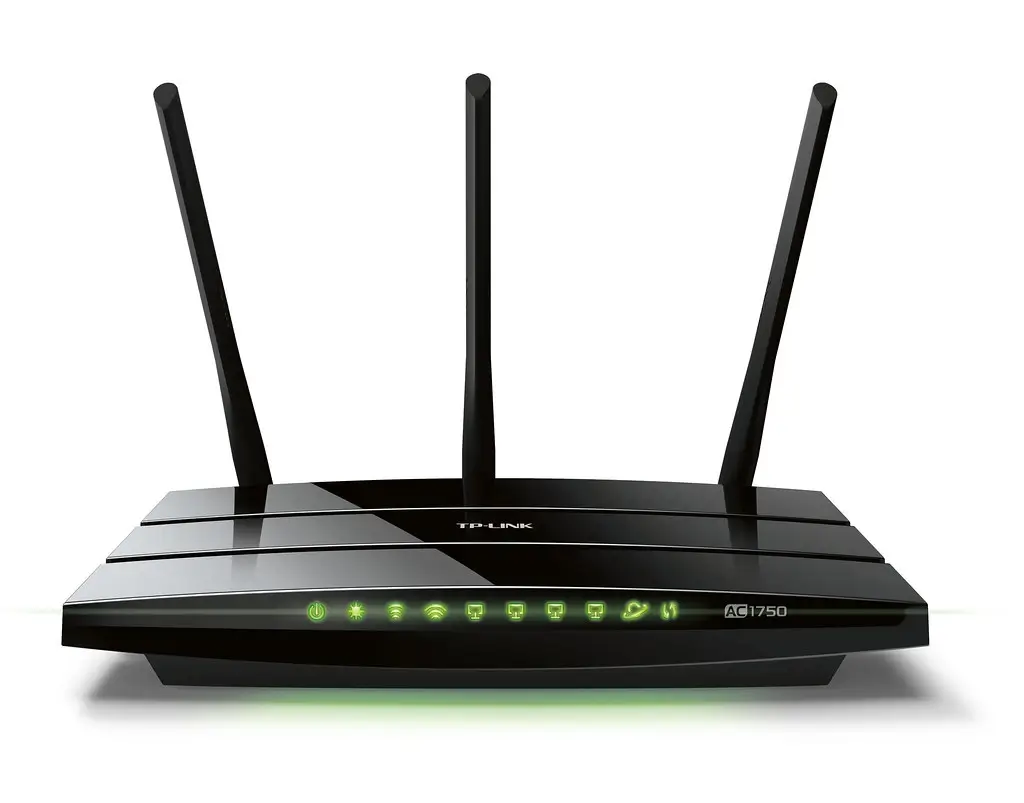
A high-performing router is essential for maintaining a fast and stable Wi-Fi connection. Older routers may struggle to handle modern bandwidth demands, leading to slow speeds, poor coverage, and frequent disconnections.
802.11 Protocol Version Supported
Wi-Fi technology has evolved over the years, with newer standards offering better speeds and efficiency:
- 802.11n (Wi-Fi 4) – Supports up to 600 Mbps.
- 802.11ac (Wi-Fi 5) – Offers speeds up to 3.5 Gbps with improved efficiency.
- 802.11ax (Wi-Fi 6) – The latest standard, providing higher speeds, better range, and lower latency.
Upgrading to a Wi-Fi 6-compatible router ensures better performance, especially in crowded networks.
Transmission Power and Antenna
The router’s transmission power and antenna design affect coverage. Higher transmission power allows signals to travel farther, while multiple antennas enhance signal strength through beamforming technology.
Processing Capacity of the Router
Routers function as mini-computers, managing data traffic. Budget routers with limited processing power struggle to handle multiple connections, leading to slowdowns. Investing in a router with a robust CPU and sufficient RAM ensures smoother performance.
The More Devices, the Slower the Speed
Wi-Fi networks share bandwidth among all connected devices. The more devices on the network, the lower the available bandwidth per device, leading to slow speeds.
Causes of Slow Speeds Due to Multiple Devices
- Shared Bandwidth: Streaming, gaming, and file downloads by multiple users congest the network.
- Signal Collisions: Too many devices competing for the same frequency result in data retransmissions.
- Router Overload: Low-end routers struggle to manage multiple connections simultaneously.
Solutions
- Limit Unnecessary Connections: Disconnect devices not in use.
- Upgrade to a Dual-Band or Tri-Band Router: More bands distribute traffic efficiently.
- Enable Quality of Service (QoS): Prioritizes bandwidth for critical applications.
Some Applications Slow Down Wi-Fi Speed
Certain applications consume significant bandwidth, leading to slow speeds for other users.
Bandwidth-Heavy Applications
- Streaming services (Netflix, YouTube, Twitch) – HD video streaming consumes large amounts of data.
- Online gaming – Requires low latency; background updates can slow performance.
- File-sharing apps (BitTorrent, Google Drive sync) – Large file transfers monopolize bandwidth.
- Video conferencing (Zoom, Teams, Skype) – High-quality video calls require stable upload speeds.
Managing Bandwidth Usage
- Schedule downloads during off-peak hours.
- Enable QoS to prioritize critical applications.
- Monitor and limit background processes.
Strategies to Improve Wi-Fi Speed
Improving Wi-Fi performance requires optimizing various factors affecting speed.
Effective Strategies To Improve Wi-Fi Speed
- Upgrade Your Router – Use a modern router supporting Wi-Fi 6.
- Optimize Router Placement – Position centrally, away from obstructions.
- Use Dual-Band or Tri-Band Routers – Switch to 5 GHz for lower congestion.
- Reduce Network Congestion – Limit connected devices.
- Update Firmware – Fixes bugs and enhances security.
- Enable QoS Settings – Prioritizes essential applications.
- Use Mesh Wi-Fi or Extenders – Expands coverage in large spaces.
By implementing these strategies, users can significantly enhance their Wi-Fi experience, reducing lag and ensuring reliable connectivity.