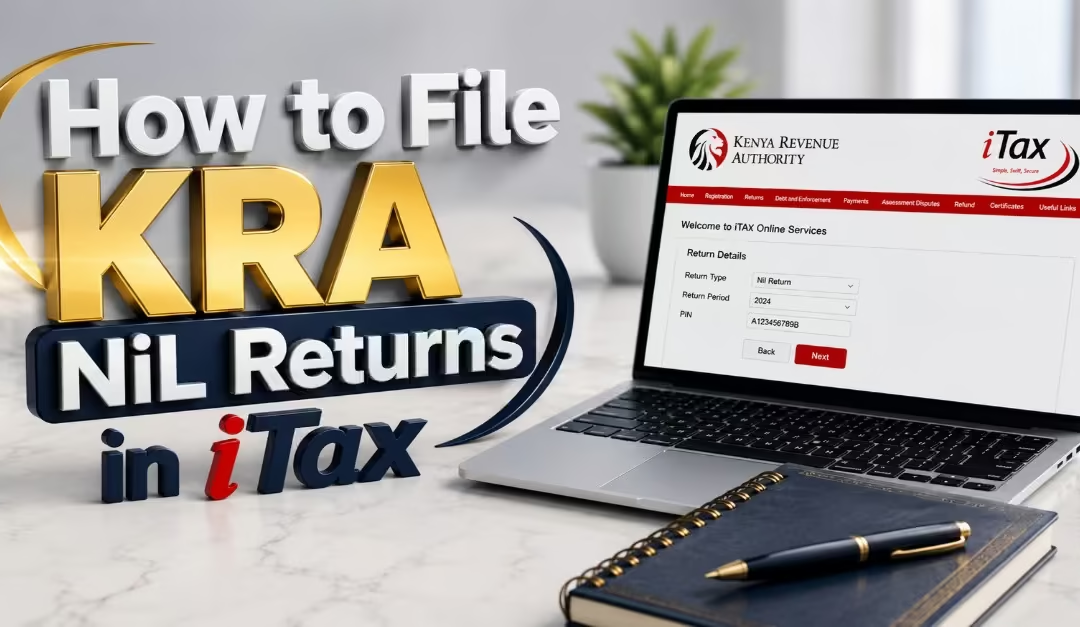
Did you know that every KRA PIN holder in Kenya is required by law to file a tax return, even if they did not earn any income during the year? Many students, unemployed individuals, and people with inactive businesses often assume that they do not need to file returns when they have no earnings. The Kenya Revenue Authority (KRA) requires all eligible taxpayers to submit a Nil return if they did not receive any taxable income, employment income, or conduct any business activities during the tax period.
Failing to file a Nil return can lead to penalties and other unnecessary compliance issues with KRA. To avoid these penalties, you should file your returns before the official deadline, which is usually on or before 30th June of the year following the tax period. For example, returns for the 2025 tax year must be filed by 30th June 2026.
In this guide, I will take you through the step-by-step process on:
- How to file KRA Nil returns online through the iTax portal
- The requirements of filing KRA Nill returns
- How to log into I tax step by step
- How to reset your I tax portal password.
- How to check whether your returns have been accepted.
What Are KRA Nil Returns?
A KRA Nil return is a tax return submitted to the Kenya Revenue Authority (KRA) to show that you did not earn any taxable income, run a taxable business, or have any tax obligations during a specific filing period, as per Timothy (2026). Even though no tax is due, you are still required to file the return through the tax portal just like any other tax return.
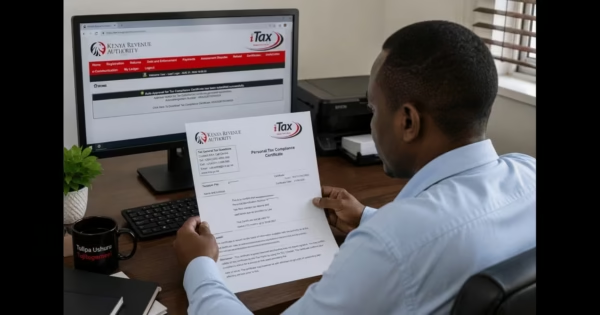
By filing a Nil return, you inform KRA that you had no taxable activity during the period being reported. This helps you remain compliant with tax regulations, avoid penalties for failing to file returns, and maintain a good tax record. It can also help when applying for important services such as a Tax Compliance Certificate (TCC), which may be required for job applications, government tenders, licences, or certain financial services.
Read Also: How to Use the KRA Shuru WhatsApp Chatbot (2026): A Step-by-Step Guide for Kenyan Taxpayers
Who Should File Nil Returns?
- University and college students
- Recent graduates without employment
- Unemployed Kenyans with KRA PINs
- Individuals not engaged in business
- Persons without taxable income during the year
Requirements for Filing KRA Nil Returns Online
Before you start filing your KRA Nil return, you will need a few basic requirements. A study by Tutorials Kenya highlights the following requirements when filling out a Nil return.
a) KRA PIN Number
You will need your KRA PIN because it is the unique identification number used to access your tax account and file returns through the iTax portal.
b) iTax Password
You must have your I-Tax account password to log in to the portal. If you cannot remember your password, you can easily reset it using the email address linked to your KRA PIN. This process will also be discussed in this article.
c) Access to the Registered Email Address
KRA sends important notifications, password reset links, and return filing confirmations to the email address registered on your I-Tax account. Before you begin, ensure that you can access this email account.
d) Smartphone, Tablet, or Computer
You will need a device that can connect to the internet and access the iTax portal. This can be a smartphone, tablet, laptop, or desktop computer.
e) Internet Connection
A stable internet connection is important for logging in, completing the filing process, and submitting your Nil return successfully without interruptions.
How to Log in to KRA iTax Portal Step by Step
Step 1: Visit the iTax Portal
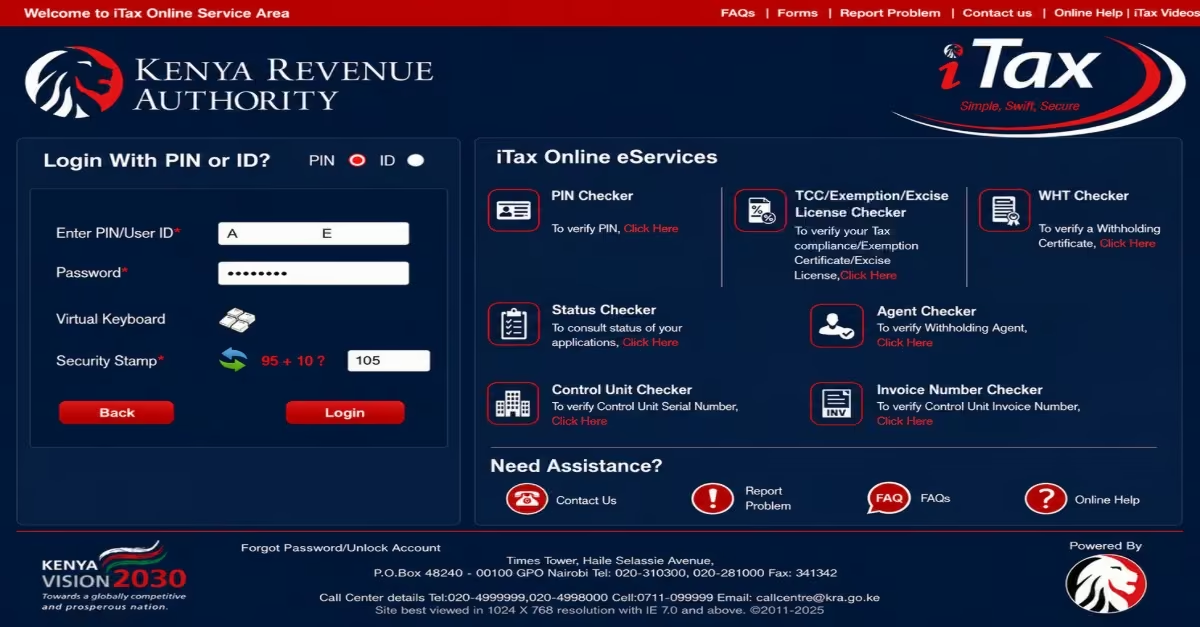
- Open your web browser and go to the KRA iTax portal at itax.kra.go.ke. This is the official online platform used for tax-related services, including filing returns.
Quick Tip: The portal can be accessed on a mobile phone, but it generally works best in a desktop or laptop browser, so use a desktop or laptop.
Step 2: Enter Your KRA PIN
- On the login page, locate the section labelled “Do you have a PIN?” and enter your KRA PIN in the field provided.
- After entering your PIN, click the “Continue” button to move to the next page.
Step 3: Enter Your iTax Password
- Enter your iTax password in the space provided on the login page. This is the password that was sent to your registered email address when your KRA PIN was created. It is different from your date of birth and other personal details.
Step 4: Solve the Security Stamp (Arithmetic Question)
- Before logging in, you will see a simple arithmetic question on the screen, such as 60 + 50 =? Enter the correct numerical answer in the field provided. Once you have entered the answer, click the “Login” button to continue.
Step 5: Verify Your Mobile Number (OTP)
- After logging in, you will be asked to verify the mobile phone number linked to your iTax account.
- If the number displayed is correct, click “Send Verification Code.” A One-Time Password (OTP) will be sent to that number via SMS.
- If the displayed number is outdated or incorrect, remove it and enter your current mobile number. Then click “Send Verification Code” to receive the OTP on the updated number. Enter the OTP received on your phone to complete the verification process. Once your OTP is verified, you will be logged in and redirected to your iTax dashboard.
How To Reset Your KRA iTax Portal Password
If you have forgotten your iTax password, you can easily reset it through the iTax portal using your KRA PIN and registered email address. This process has been explained below:
Step 1: Go to the iTax Portal
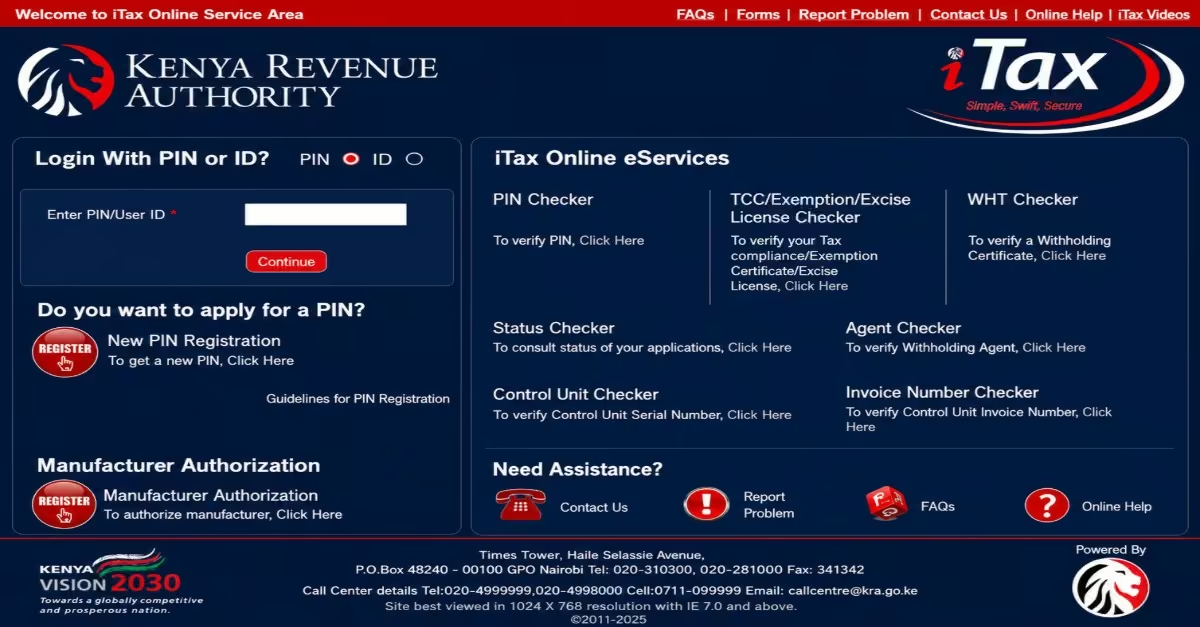
- Open your web browser and visit itax.kra.go.ke. This is the official KRA online portal where you can access all iTax services, including filing returns and managing your tax account.
Step 2: Enter Your KRA PIN and Click Continue
- On the login page, enter your KRA PIN (or National ID number, where applicable) in the field provided.
- After entering your details, click the “Continue” button to proceed to the password entry page.
Step 3: Click “Forgot Password”
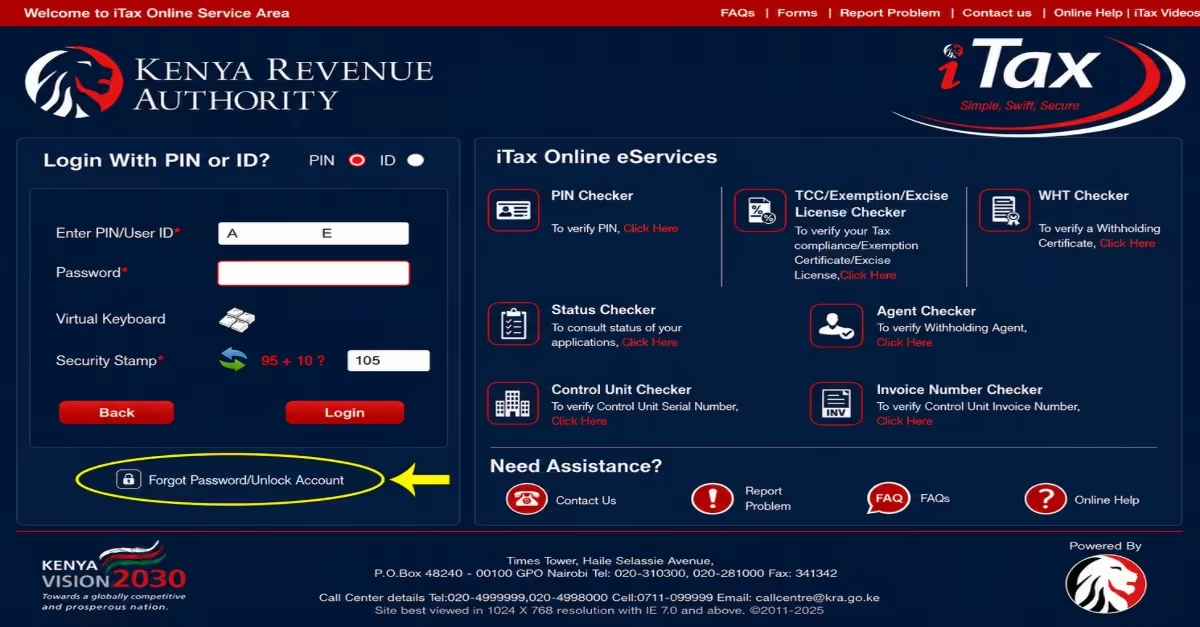
- Once you reach the password page, do not enter any password.
- Instead, locate the “Forgot Password ” link found below the password field and click on it. This will take you to the password reset page.
Step 4: Solve the Security Stamp and Submit
- On the password reset page, you will be required to answer a simple arithmetic question, such as 12 + 7 = ?. This security feature is known as the security stamp.
- Enter the correct numerical answer in the space provided.
- After that, click the “Submit” button. A confirmation message will appear informing you that the password reset details have been sent to your registered email address.
Step 5: Check Your Email for the Temporary Password
- Open the email address linked to your iTax account and look for an email from KRA. The email is usually sent from admin.itax2.
- The message will contain your KRA PIN and a system-generated temporary password. Keep the email open or note down the temporary password because you will need it to log in.
- If you cannot find the email in your inbox, check your spam or junk folder.
Step 6: Log In and Create a New Password
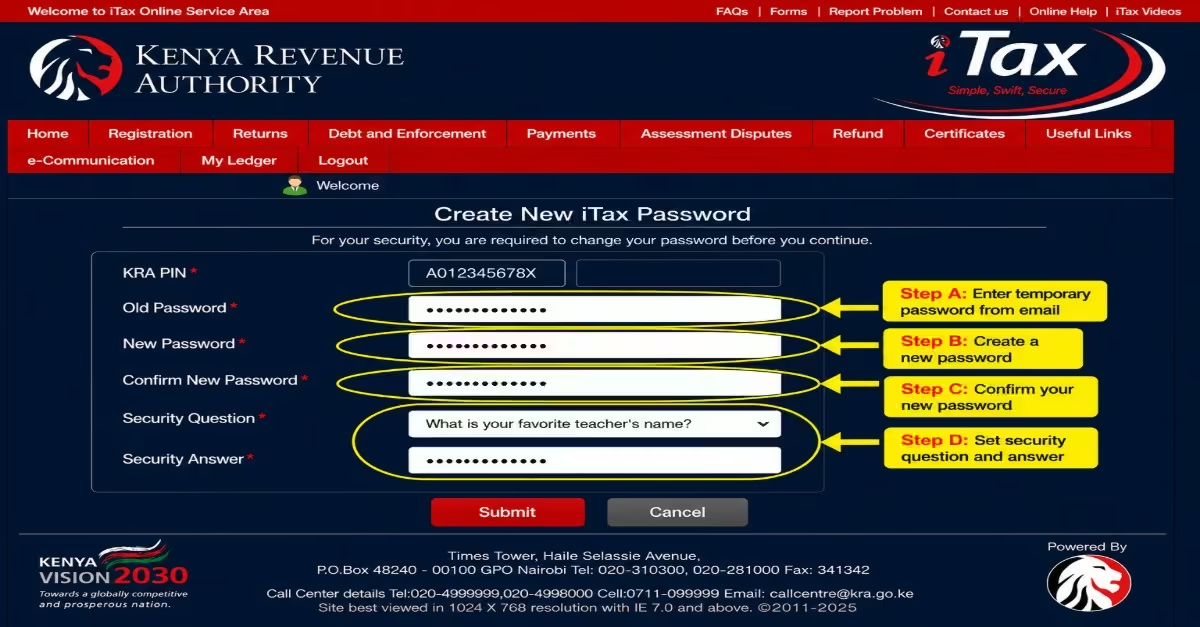
- Return to the iTax portal at itax.kra.go.ke, enter your KRA PIN, and click “Continue.”
- Enter the temporary password received via email and click “Login.”
The system will automatically prompt you to create a new password. You will be required to:
- Enter the temporary password in the “Old Password” field.
- Enter your preferred password in the “New Password” field.
- Re-enter the same password in the “Confirm New Password” field.
- Set a security question and answer if prompted by the system (this may vary depending on your account settings).
- Once you have completed the required fields, click “Submit.” A confirmation message will appear to show that your password has been changed successfully.
Step-by-Step Guide: How to File KRA Nil Returns Online
Step 1: Log In to the iTax Portal
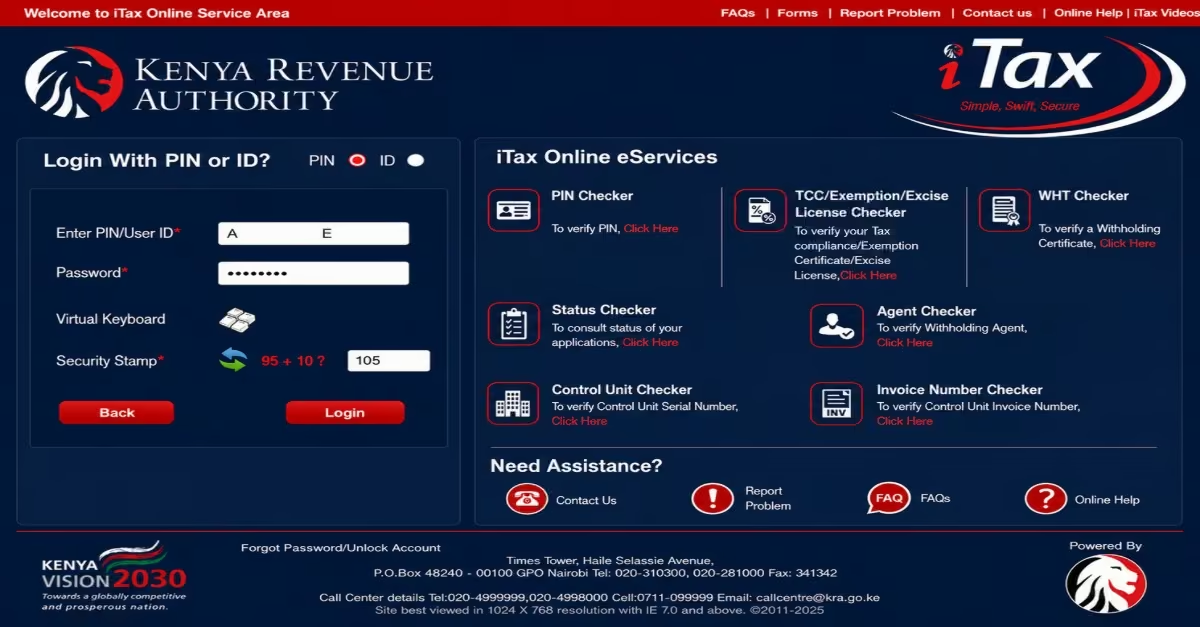
- Go to iTax portal and log in using your KRA PIN and password.
- Solve the arithmetic security stamp and click “Login”.
- Complete the mobile number OTP verification if prompted.
Step 2: Go to the Returns Menu
- Once on your dashboard, look at the top navigation menu and click on “Returns”. A drop-down menu will appear with several options.
Step 3: Select “File Nil Return”
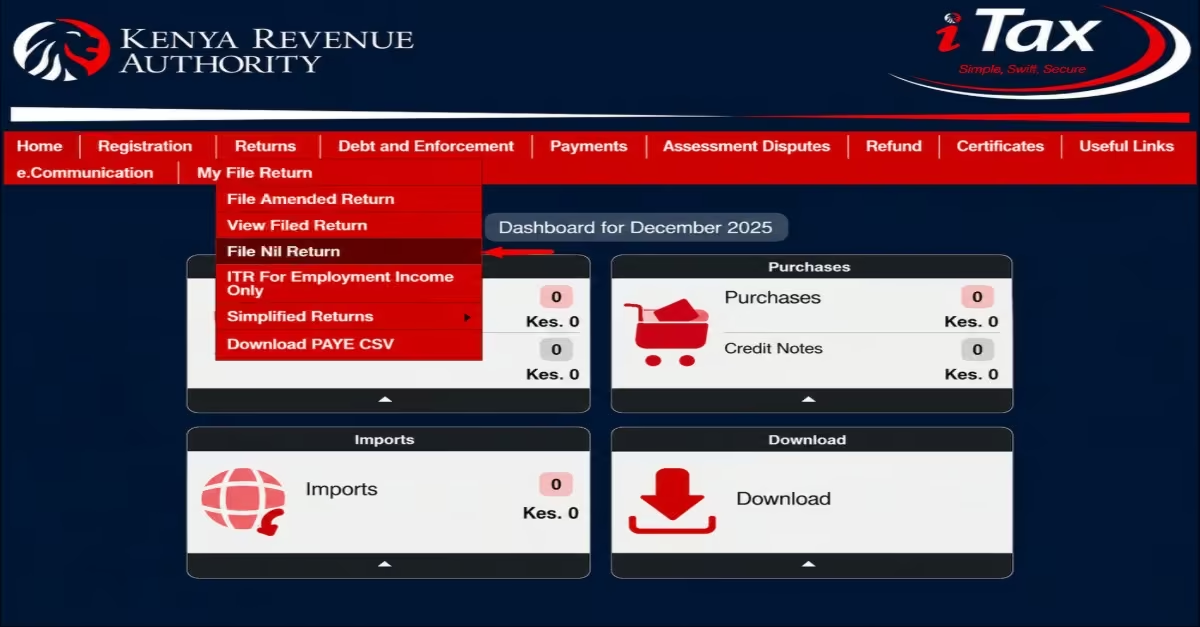
- From the drop-down menu, click on “File Nil Return” — note this is a separate option from “File Return,” which is used by taxpayers who have income to declare.
- Do not select “File Return” as this will take you to the wrong form.
Step 4: Select Your Tax Obligation
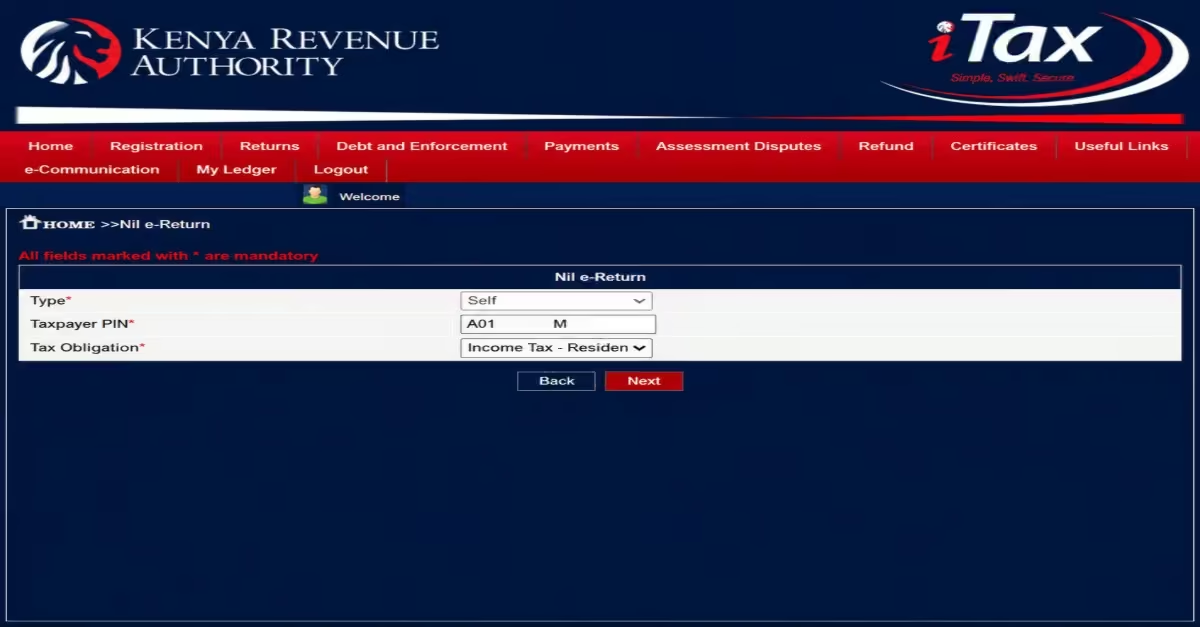
- On the next screen, you will see a “Tax Obligation” field.
- Select “Income Tax – Resident Individual” from the options.
- You will notice that your Taxpayer PIN is already automatically filled in by the system. Click the “Next” button to proceed.
Step 5: Confirm the Return Period
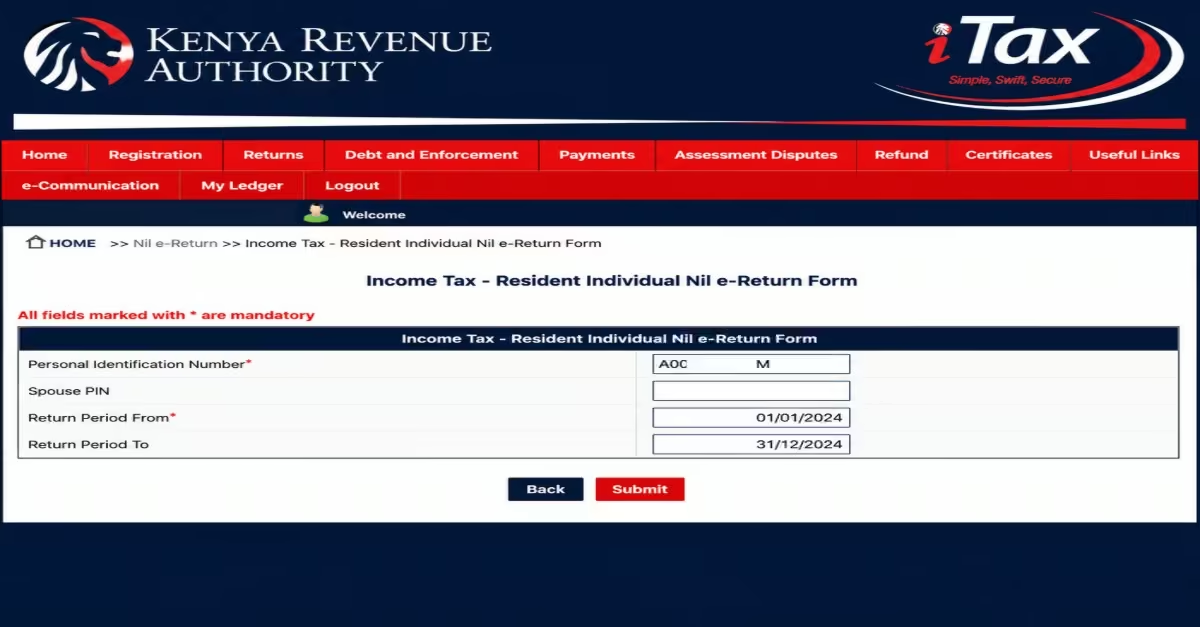
- The system will display the “Return Period From” and “Return Period To” fields.
- For the 2026 filing season (covering the 2025 tax year), these will auto-populate as 01/01/2025 to 31/12/2025 — verify this is correct before proceeding. Once confirmed, click “Submit”.
Step 6: Confirm the Submission
- A pop-up alert will appear asking you to confirm that you want to submit a Nil Return. Click “OK” to confirm and complete the submission.
How to Confirm If Your KRA Nil Return Was Successfully Filed
Step 1: Log In to the iTax Portal
- Visit itax.kra.go.ke and log in to your iTax account using your KRA PIN and password.
- Complete the arithmetic security stamp by entering the correct answer and, if prompted, verify your account using the OTP sent to your mobile phone.
Step 2: Go to Returns > View Filed Returns
- Once you are logged in, click the “Returns” menu in the top navigation bar.
- From the drop-down options, select “View Filed Returns.” Be sure to choose this option carefully, as it is different from “File Nil Return” or “File Return.”
Step 3: Select Your Tax Obligation and Consult
- On the next page, select the appropriate Tax Obligation from the list provided. For most students, unemployed individuals, and employees, this will be “Income Tax – Resident Individual.”
- Click the “Consult” button to continue. A pop-up message asking “Do you want to view returns?” will appear. Click “OK” to proceed.
Step 4: Check the Status of Your Returns
- A table will be displayed showing all the returns you have filed under the selected tax obligation, arranged by return period.
- To confirm that your return was successfully submitted, check the status column. The status should read “Approved.” For example, if you can see a return for the period 01/01/2025 to 31/12/2025 with an “Approved” status, it means your Nil Return was successfully received and accepted by KRA.
- If no return is listed for that period, it indicates that you have not yet filed your return for that year and may be subject to a penalty for non-filing.
Read Also: How to Apply for a Certificate of Good Conduct in Kenya (2026): Step-by-Step Online Guide
Frequently Asked Questions (FAQs)
Do Students Need to File KRA Nil Returns?
Yes, students with a KRA PIN that has an active Income Tax obligation are required to file Nil returns if they did not earn any taxable income during the tax year.
I Am Unemployed. Do I Still Need to File Nil Returns?
Yes. If your KRA PIN has an active Income Tax obligation, you must file a Nil return every year, even if you are unemployed and did not earn any income during the filing period.
What Happens If I Do Not File My Nil Return?
Failure to file a return by the deadline may result in a late-filing penalty of KSh 2,000 for individuals. This may also affect your ability to obtain a Tax Compliance Certificate (TCC) when needed.
Is Filing KRA Nil Returns Free?
Yes. Filing Nil returns through the I-Tax portal is completely free. You do not need to pay any fee to submit your return.
Can I Get a Tax Compliance Certificate Without Filing Returns?
No. To qualify for a Tax Compliance Certificate (TCC), your tax records must be up to date. Unfiled returns or outstanding penalties may prevent KRA from issuing the certificate.
What Should I Do If I Forgot My I-Tax Password?
You can reset your password through the I-Tax portal using your KRA PIN and the email address registered on your account. KRA will send a password reset link to your email. Use the procedure outlined above to reset your password.
Can I File a Nil Return If I Have a Business?
No. If you operated a business or earned taxable income during the year, you should file the appropriate income tax return instead of a Nil return. Filing a Nil return when you had income may be considered a false declaration.
Conclusion
Filing your KRA returns is an important responsibility for every PIN holder in Kenya, even when you have no income to declare. By following the procedures above, you can easily file Nil returns through the I-tax portal, reset your KRA password if you forgot it, and check whether your returns have been accepted. Staying compliant not only keeps your tax record clean but also ensures you remain eligible for essential services such as Tax Compliance Certificates, which are often required for employment, business, and official applications.