If you run a business in Kenya, issuing proper invoices is essential for accurate sales records and meeting your tax obligations. The Kenya Revenue Authority (KRA) uses the Electronic Tax Invoice Management System (eTIMS) to support electronic invoicing, and all persons carrying out business are required to onboard the system and issue electronic tax invoices.
People who have never used eTIMS may find the registration and invoicing process difficult; however, KRA provides several eTIMS solutions, including the eTIMS online portal, eTIMS Client, and eTIMS Lite options available through eCitizen, USSD, and mobile devices. These options let businesses choose a solution that fits how they operate and generate electronic invoices for customers. This article will guide you on how to generate eTIMS invoices using different methods.
- What Is an eTIMS Invoice and Why It Matters in Kenya
- Key Features of an eTIMS Tax Invoice
- eTIMS Solutions Available in Kenya
- Requirements for eTIMS Registration in Kenya
- How to Generate an eTIMS Invoice Using eCitizen (Web)
- How to Generate an eTIMS Invoice Using USSD (222#)
- How to Generate eTIMS Invoices via the KRA Web Portal
- How to Generate an eTIMS Invoice Using the Mobile App (eTIMS Lite / eTIMS Non-VAT)
- Frequently Asked Questions on eTIMS Invoices
- Conclusion
What Is an eTIMS Invoice and Why It Matters in Kenya
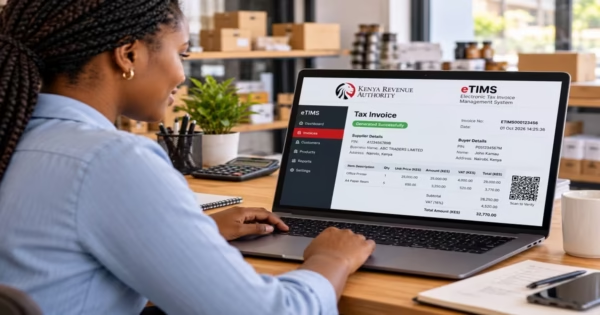
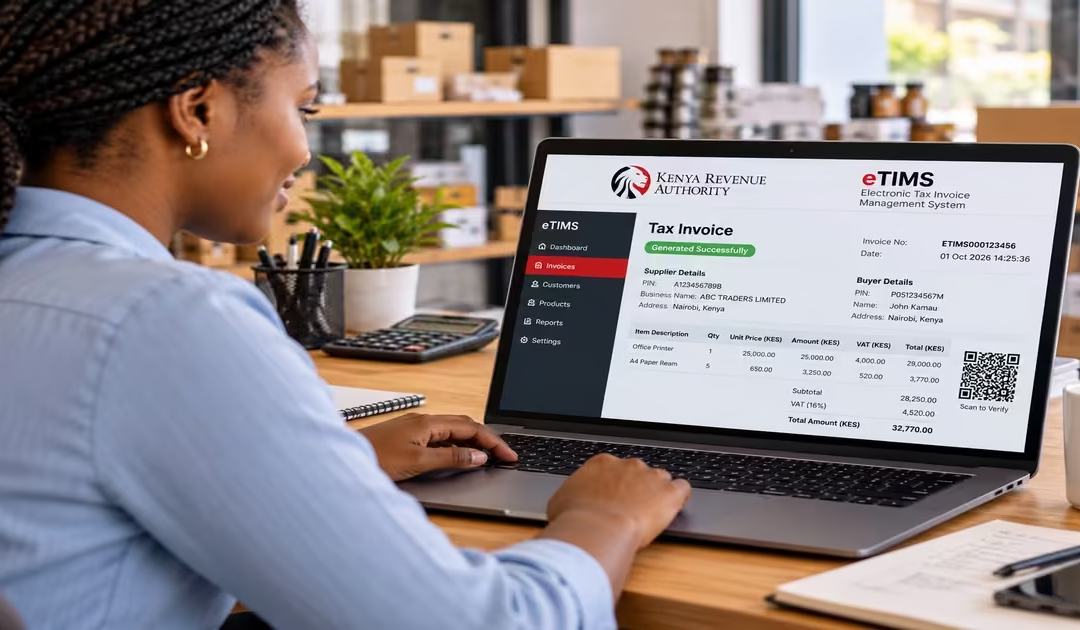
An eTIMS invoice is an electronic tax invoice generated through the Kenya Revenue Authority’s (KRA) Electronic Tax Invoice Management System (eTIMS). It records important details about a business transaction, including the seller’s information, buyer details where applicable, the goods or services supplied, quantities, prices, and taxes. Once generated through eTIMS, the invoice is sent to KRA and becomes part of the taxpayer’s electronic sales records.
An eTIMS invoice is important because it helps businesses meet Kenya’s electronic invoicing requirements set by the Kenya Revenue Authority. The Kenya Revenue Authority states that all persons engaged in business must onboard eTIMS and issue electronic tax invoices, whether or not they are registered for VAT.
Key Features of an eTIMS Tax Invoice
Before looking at the registration and invoicing process, it is important to understand the main details found on an eTIMS invoice. KenOdhiambo’s guide on generating an eTIMS invoice highlights the following details.
- QR Code – The QR code helps verify an eTIMS invoice and allows its details to be checked electronically. It is normally displayed in the bottom-right section of the invoice.
- Invoice Number – The invoice number is a unique reference given to each invoice for identification and record-keeping. The eTIMS system generates it automatically, and it usually appears at the top of the invoice.
- Tax Breakdown – The tax breakdown shows the taxes applicable to the transaction, such as VAT where applicable. It appears in the itemized section of the invoice, alongside the goods or services supplied and their respective amounts.
- Supplier PIN – The supplier PIN identifies the business or taxpayer issuing the invoice. It is included in the header section of the eTIMS invoice together with other details identifying the seller.
- Buyer PIN – The buyer PIN identifies the customer receiving the goods or services. If the customer provides a KRA PIN, it is recorded in the customer details section of the invoice.
- Date and Time – The date and time show when the electronic tax invoice was generated and provide a record of when the transaction was invoiced. This information is generally displayed near the invoice number.
- Digital Signature – The digital signature which helps authenticate the electronic invoice and protect the accuracy of its information. It forms part of the verification details associated with the eTIMS invoice.
Read Also: How to File KRA Nil Returns Online via iTax for Students & Unemployed
eTIMS Solutions Available in Kenya
The Kenya Revenue Authority (KRA) provides several eTIMS solutions to meet the needs of different types and sizes of businesses. Below is an overview of the official eTIMS solutions currently available in Kenya.
a) Online Portal
The Online Portal is a web-based platform accessed through etims.kra.go.ke. It suits service-sector taxpayers who issue a relatively small number of invoices. You can log in and create invoices directly through your web browser without installing additional software.
b) eTIMS Client
eTIMS Client is downloadable software that works on Windows computers, laptops, Android phones, tablets, and PDAs. It supports multiple branches and several cashier tills or payment points. This solution suits businesses that sell goods, or both goods and services, and need a more flexible system that can also work offline.
c) eTIMS Lite
These are free, easy-to-use options mainly designed for small and micro businesses, particularly those not registered for VAT. They mainly include USSD, the eTIMS mobile application, and the eCitizen portal to generate invoices.
d) System-to-System Integration
This option is designed for businesses that already use their own invoicing software and POS system. They include:
- Online Sales Control Unit – Suitable for businesses whose systems are always connected to the internet and need to send invoices to KRA in real time.
- Virtual Sales Control Unit – Suitable for businesses that issue a high volume of invoices or whose systems may sometimes operate offline. It supports sending invoices in batches.
e) Reverse Invoicing and Buyer Initiated Solution
This solution allows a registered buyer to generate a tax invoice on behalf of a seller. It can be useful when dealing with small traders, informal businesses, or small-scale farmers who cannot yet issue eTIMS invoices themselves. You mainly access the solution through the eCitizen platform.
Requirements for eTIMS Registration in Kenya
Before registering for eTIMS, you need basic information and documents ready. These requirements help ensure that your eTIMS account is correctly linked to your KRA taxpayer information and that you can access the system without unnecessary delays.
- Active KRA PIN – You need an active KRA PIN because your eTIMS registration is linked to your taxpayer profile with KRA.
- Registered Phone Number – You should have access to the phone number registered on your iTax profile because KRA may use it to send an OTP for verification.
- Business Details – Your business information, such as the registered name and type of business, should match the details in your iTax profile. Incorrect or outdated information may cause registration issues.
- eTIMS Solution Type – You need to choose the eTIMS solution that suits how your business operates. KRA provides different options based on factors such as the type and size of the business and how invoices are generated. Choose the one that suits you from the options discussed above.
How to Generate an eTIMS Invoice Using eCitizen (Web)
The eTIMS web option on eCitizen is mainly suitable for small businesses, sole proprietors, and individuals with relatively simple invoicing needs. It lets users generate electronic tax invoices online using a computer or web browser, keep transaction records, and meet KRA e-invoicing requirements without installing separate invoicing software.
Step 1: Log in to eCitizen
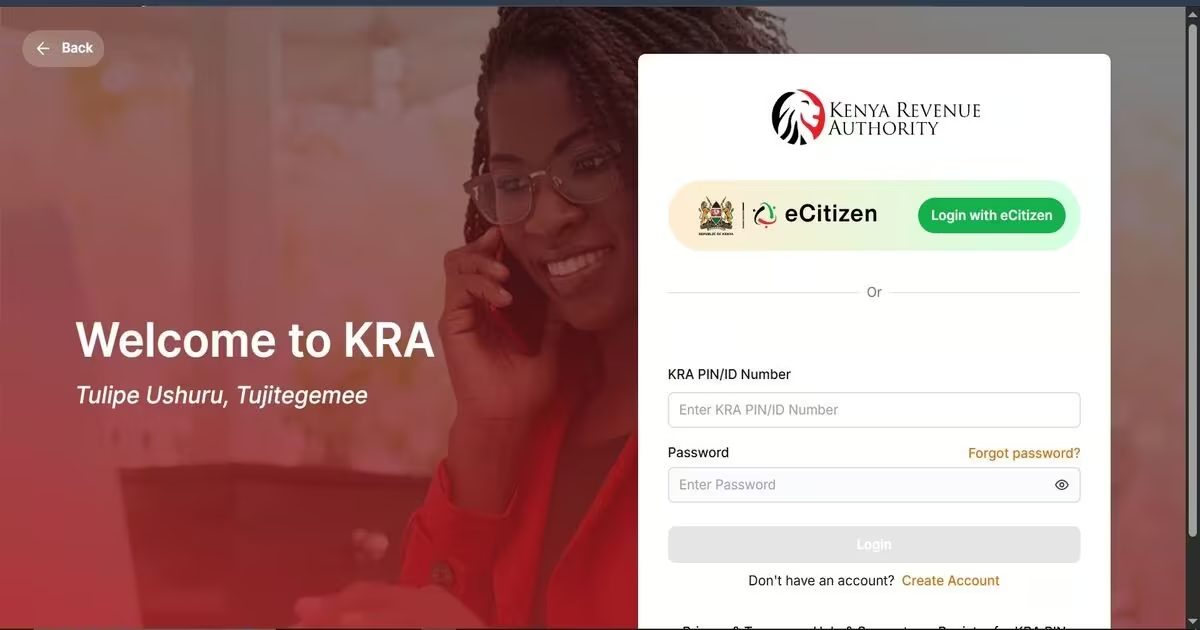
- Go to the KRA official link to eCitizen
- Click Sign In and enter your KRA details
- You can also click Sign In via eCitizen.
- Enter your National ID number or email address and your eCitizen password.
- Enter the OTP sent to your registered phone number.
Step 2: Activate eTIMS (First-time users only)
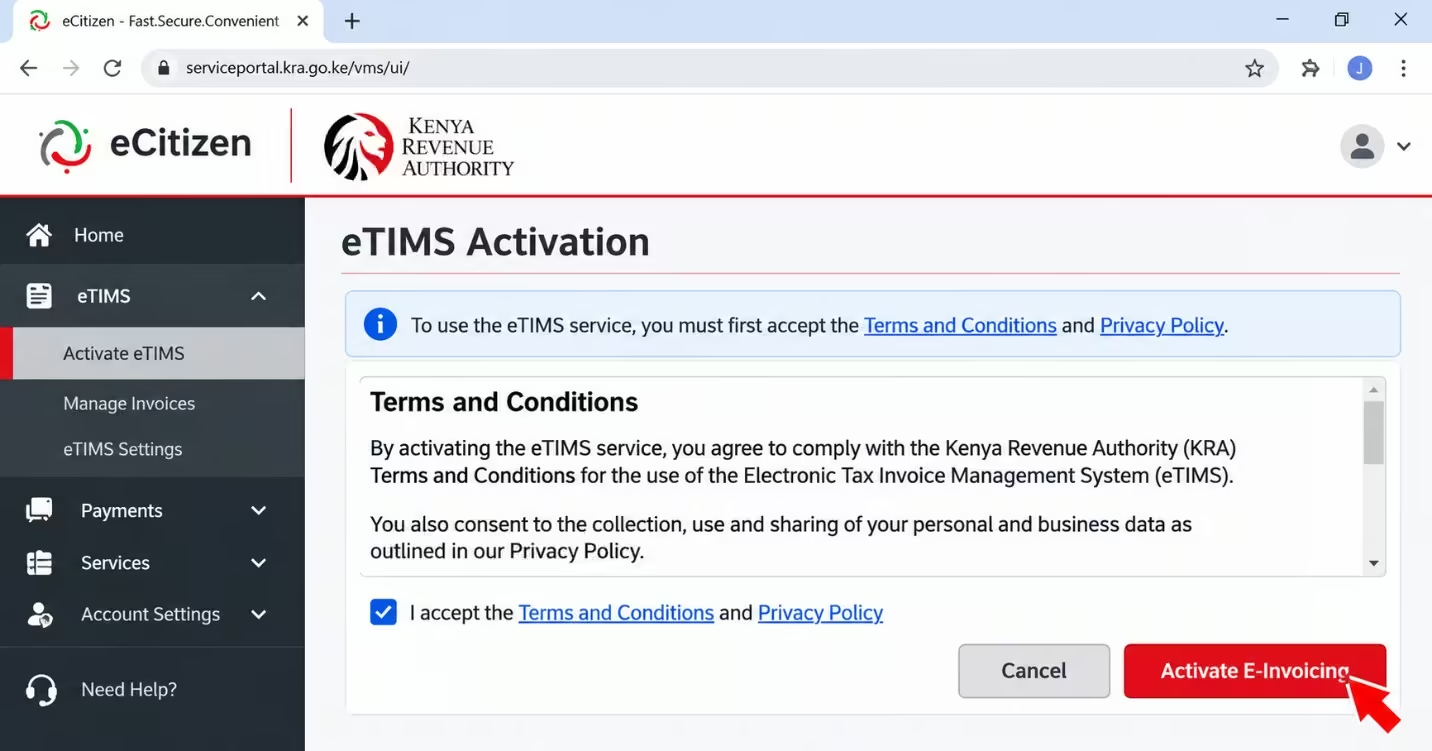
Must read: the procedure below is for first-time users only.
- On the dashboard, click Invoicing (eTIMS).
- Accept the Terms and Conditions and Privacy Policy.
- Click Activate E-Invoicing.
Step 3: Create a New Invoice
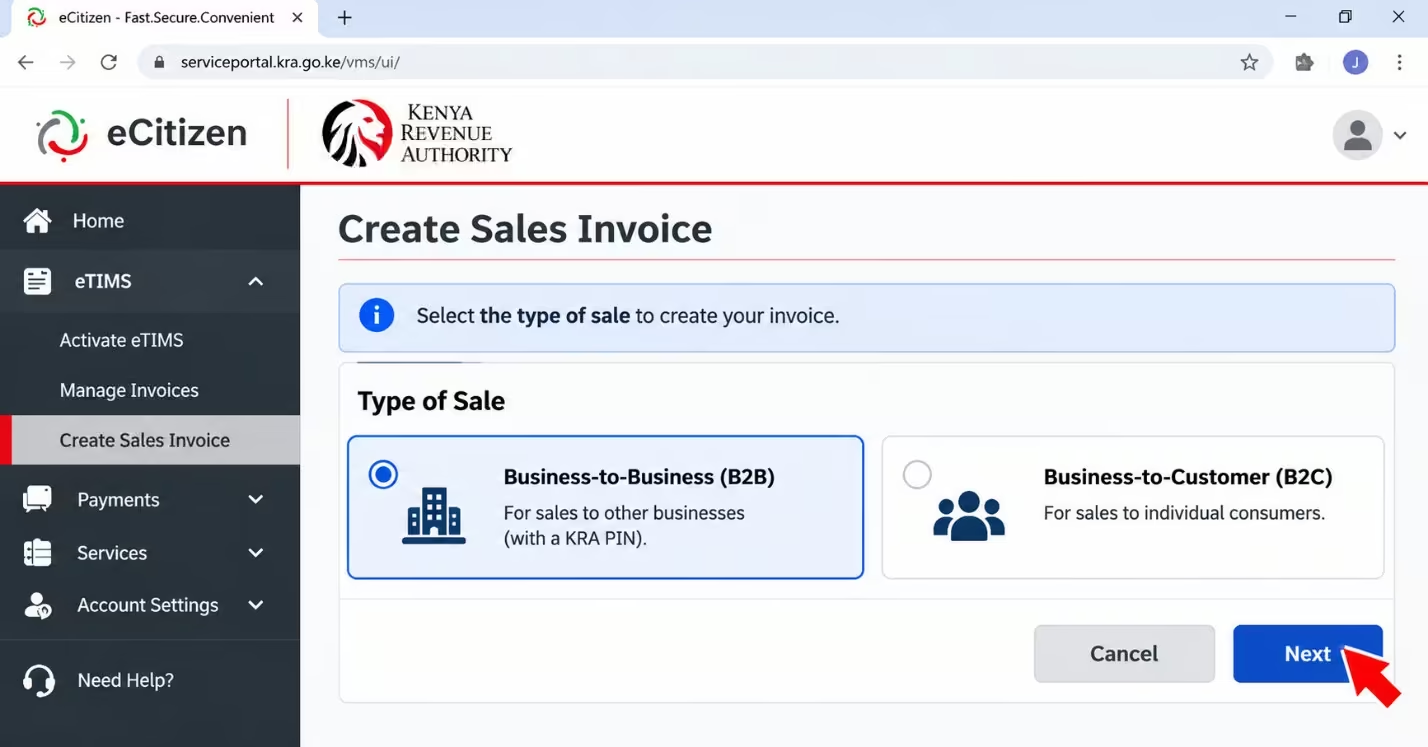
- Click Sales or open the Invoicing module.
- Select Invoice or Create Sales Invoice.
- Choose the type of sale, either Business-to-Business (B2B) or Business-to-Customer (B2C).
Step 4: Add Customer Details
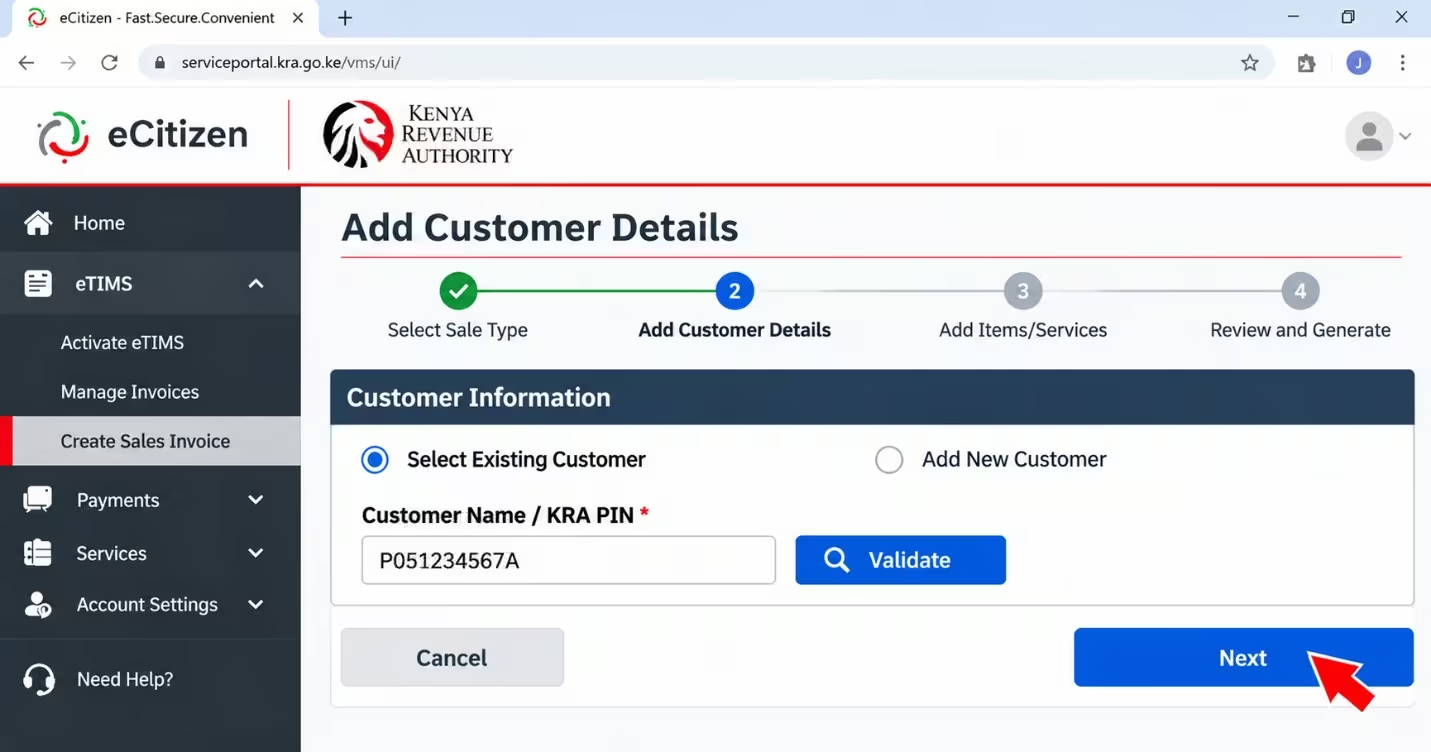
- Select an existing customer or click Add New.
- Enter the customer’s KRA PIN, if available, or enter their details manually.
- Click Add or Validate.
Step 5: Add Items or Services
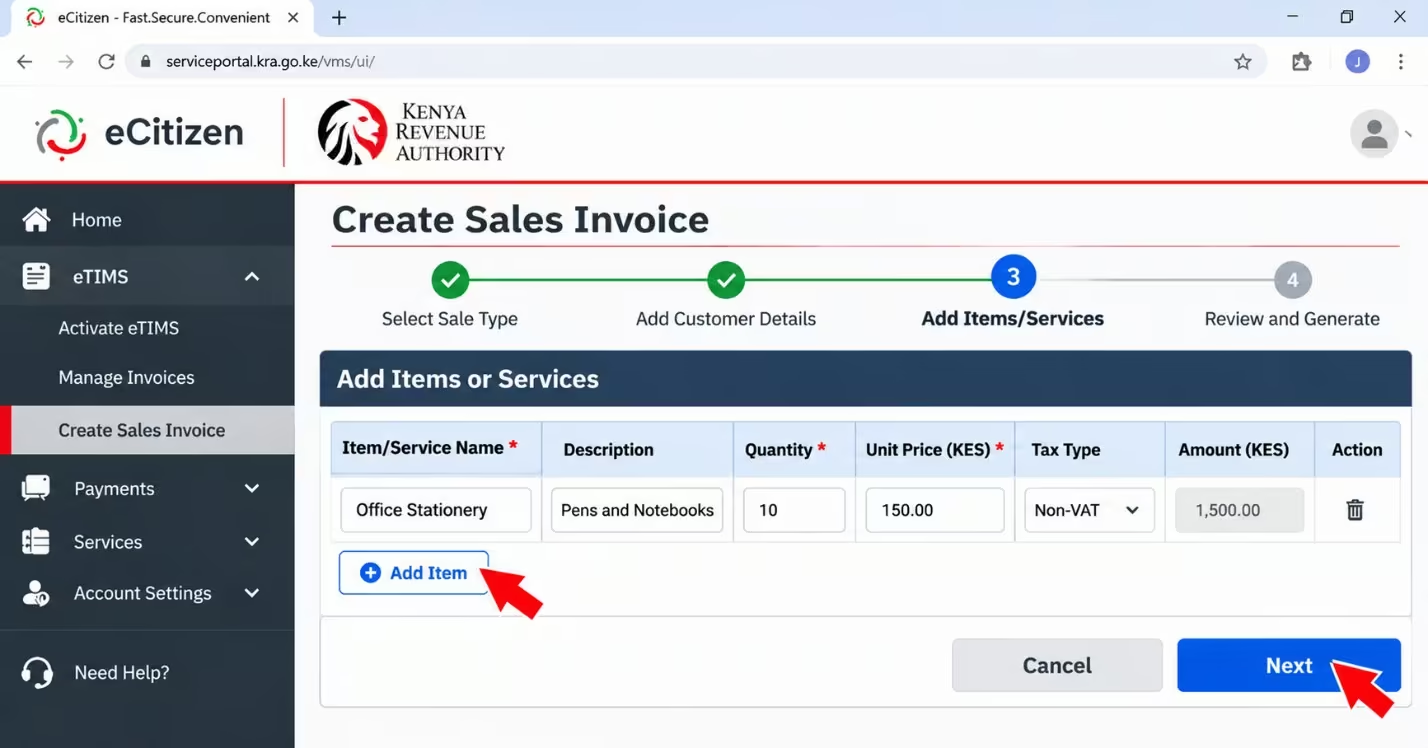
- Click Add Item.
- Enter the product or service name, description, quantity, and unit price.
- Confirm the applicable tax type, which is usually Non-VAT for eTIMS Lite users.
- Click Add.
Step 6: Review and Generate the Invoice
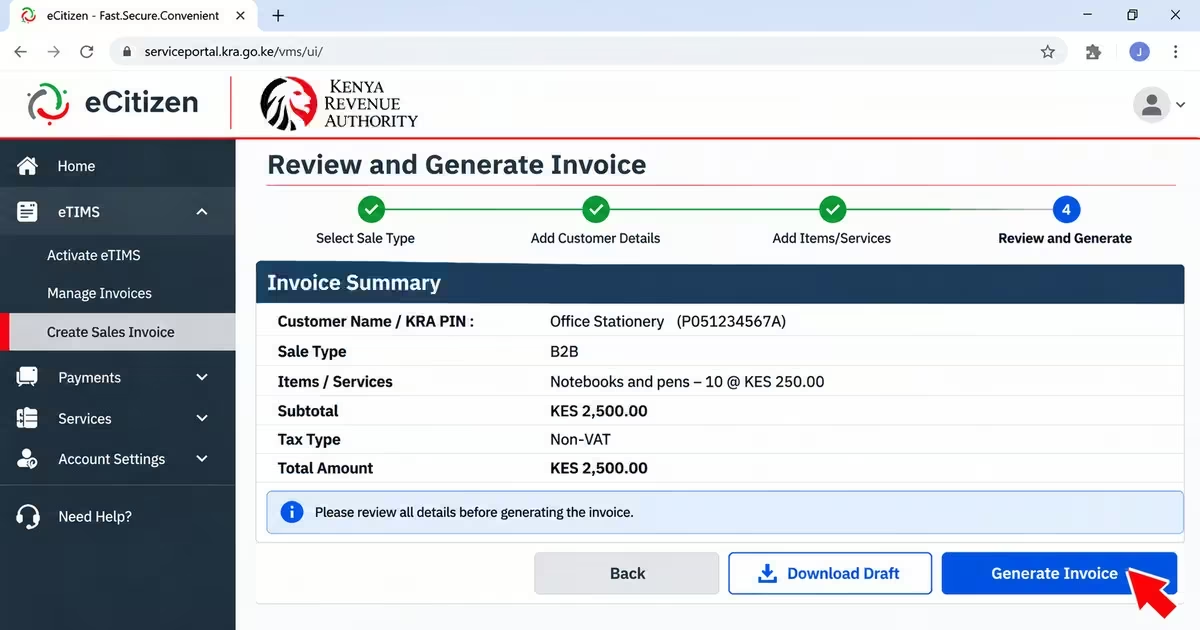
- Carefully review all the invoice details.
- Click Save, Save and Send, or Create Invoice, depending on the option displayed.
- Download the generated eTIMS invoice. It will include a control number and QR code.
How to Generate an eTIMS Invoice Using USSD (222#)
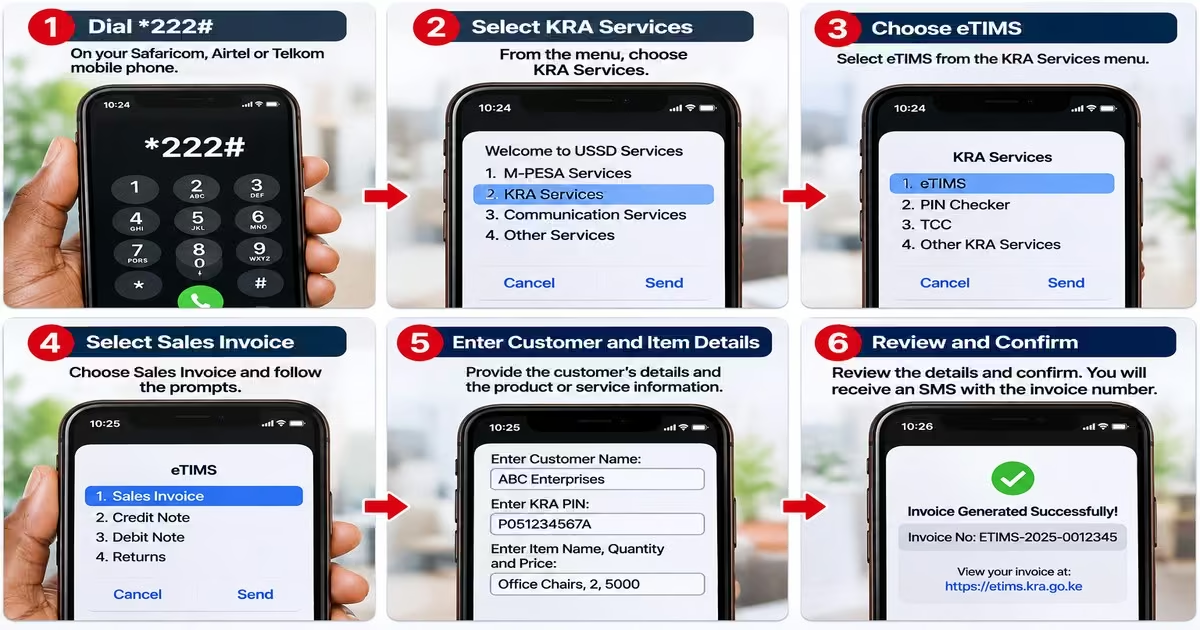
The eTIMS USSD option suits small businesses, sole proprietors, and other taxpayers, including non-VAT-registered businesses, that need a simple way to issue electronic invoices. It is ideal for users who mainly use a mobile phone and have limited internet access, as it works without an internet connection. Follow the procedure below to generate an invoice via USSD.
- Dial *222# on your Safaricom mobile phone. No internet connection is required.
- Select KRA Services, then choose eTIMS from the menu.
- Select Sales Invoice. If you are using eTIMS USSD for the first time, you may be required to provide your ID number and year of birth and accept the terms and conditions.
- Enter the required customer details, such as the customer’s name and KRA PIN, where applicable.
- Enter the details of the product or service, including the name, quantity, and price.
- Review the information and confirm the invoice. You will receive an SMS with the invoice number and a link to access the generated invoice.
How to Generate eTIMS Invoices via the KRA Web Portal
The eTIMS online portal is KRA’s dedicated platform for managing electronic invoices and sales transactions. Unlike the eTIMS option available through eCitizen, it provides a more detailed invoicing environment and suits businesses that need to manage sales, customers, tax details, and transaction records directly through the eTIMS system.
Step 1: Log in to the eTIMS Portal
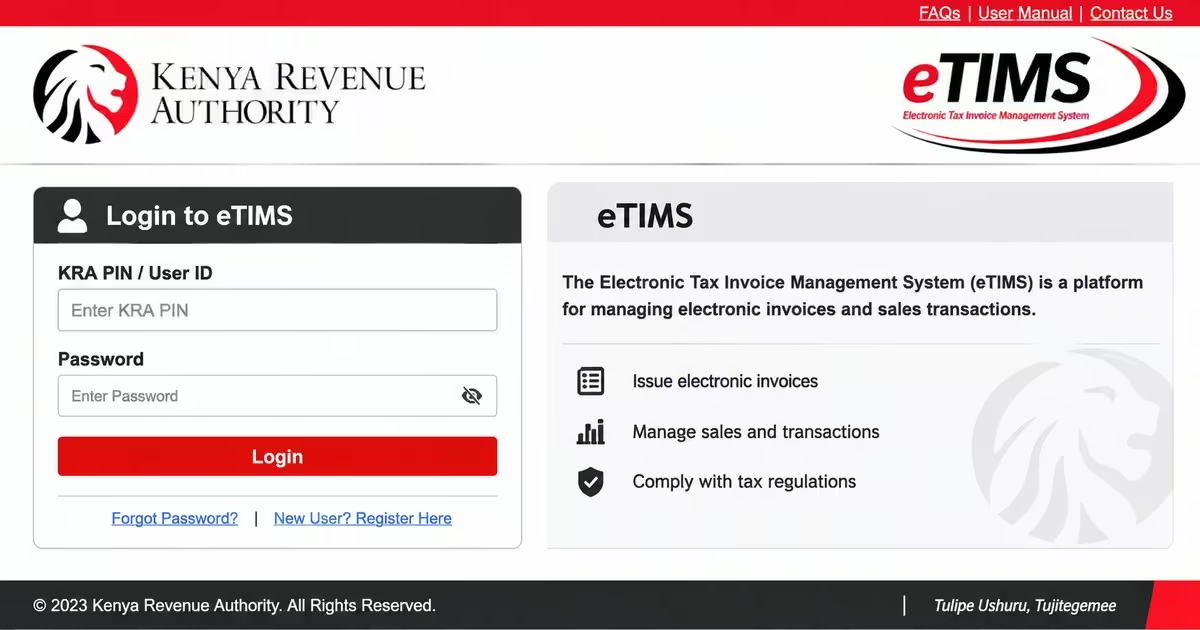
- Go to the KRA eTIMS portal link
- Enter your KRA PIN as the User ID and your eTIMS password.
- If this is your first login after registration, use the temporary password sent by KRA and change it immediately.
Step 2: Navigate to Sales Receipt
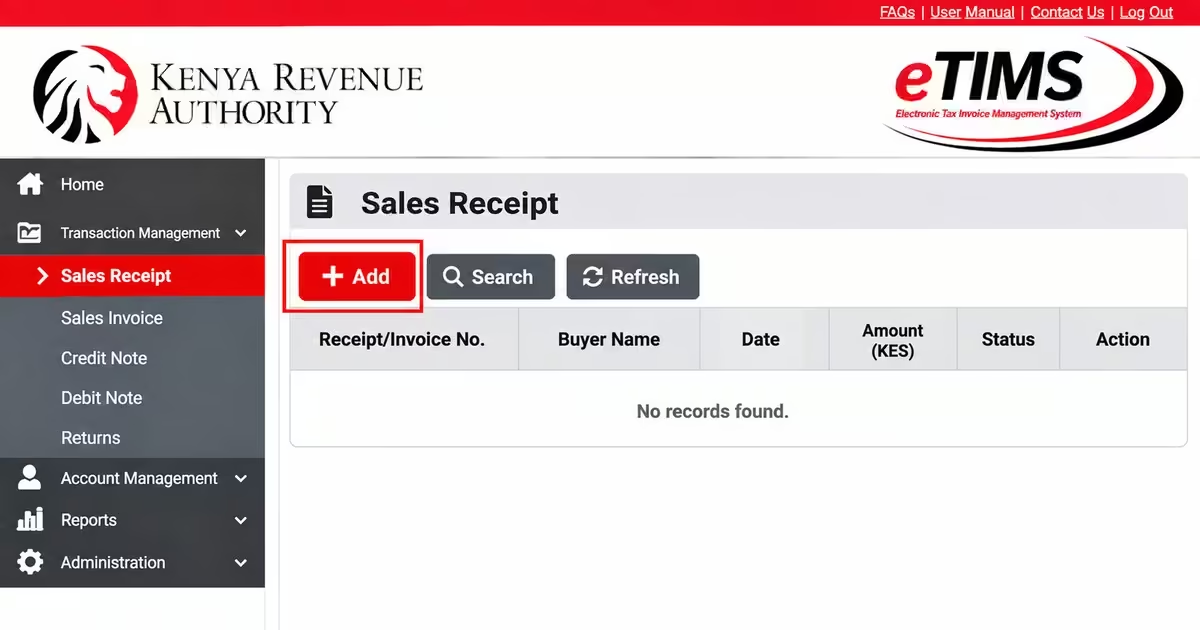
- On the dashboard, go to Transaction Management.
- Click Sales Receipt.
- Click the Add button to create a new invoice.
Step 3: Enter the Buyer’s Details
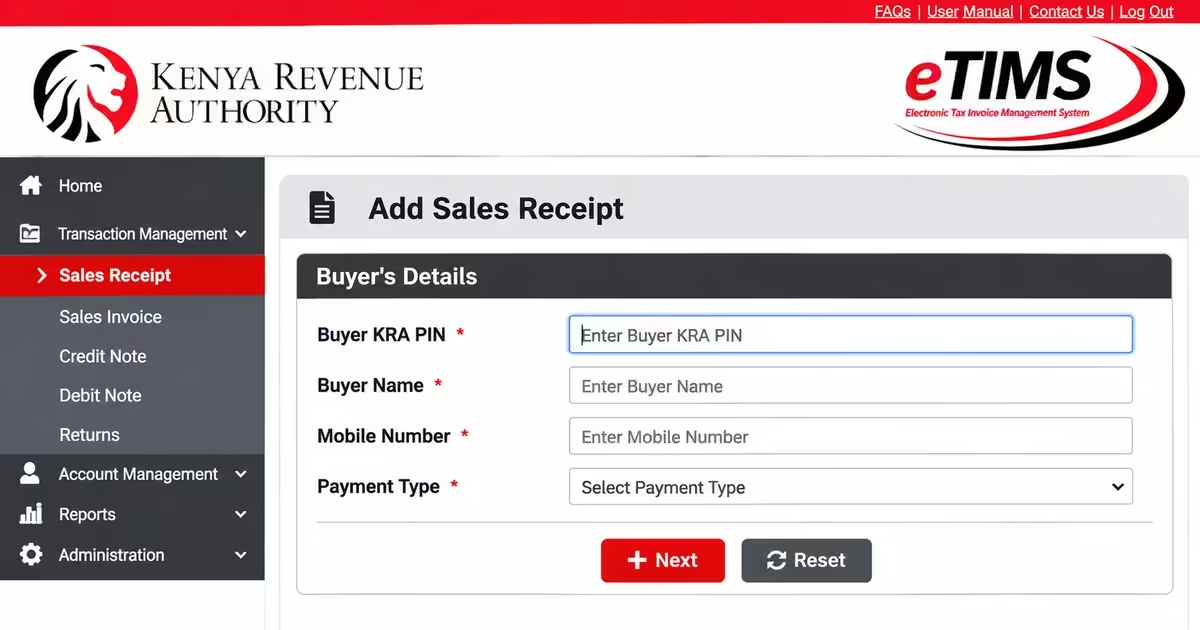
- For Business-to-Business (B2B) transactions, enter the buyer’s KRA PIN. This is recommended and may be required for the buyer to claim the expense.
- Enter the buyer’s name and mobile number.
- Select the payment type, such as Cash, M-Pesa, or Bank.
Step 4: Add Items or Services
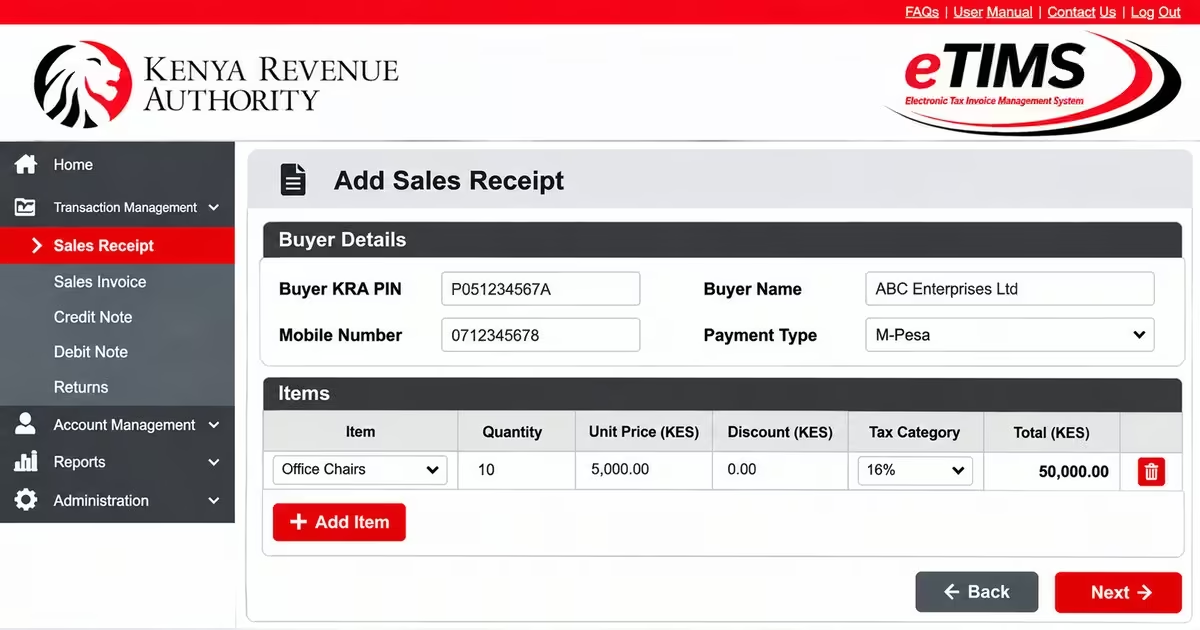
- Search for the item from your list of registered items.
- Select the item and enter the quantity and unit price, including VAT where applicable.
- Add a discount if necessary.
- Make sure the correct tax category is selected, such as 16%, 0%, or Exempt.
Step 5: Review the Invoice
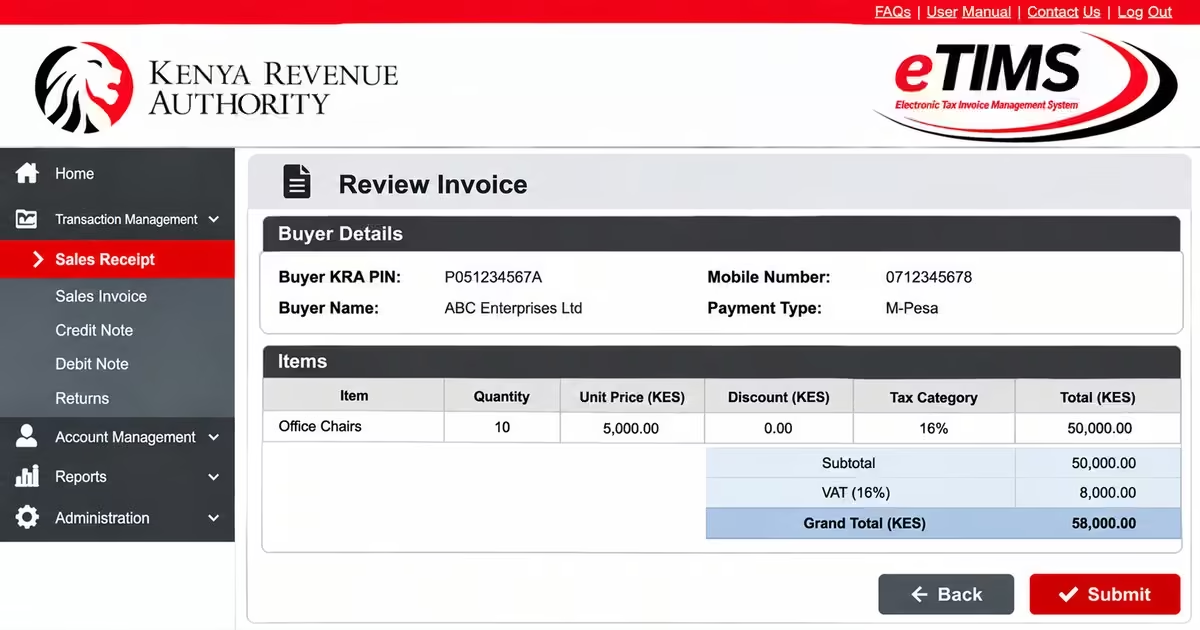
- Carefully check all the details, including the seller’s information, buyer’s details, items, quantities, prices, and tax amounts.
- Remember that once an invoice is submitted, it cannot be deleted. If you need to correct an error, you can issue a credit note.
Step 6: Submit and Download the Invoice
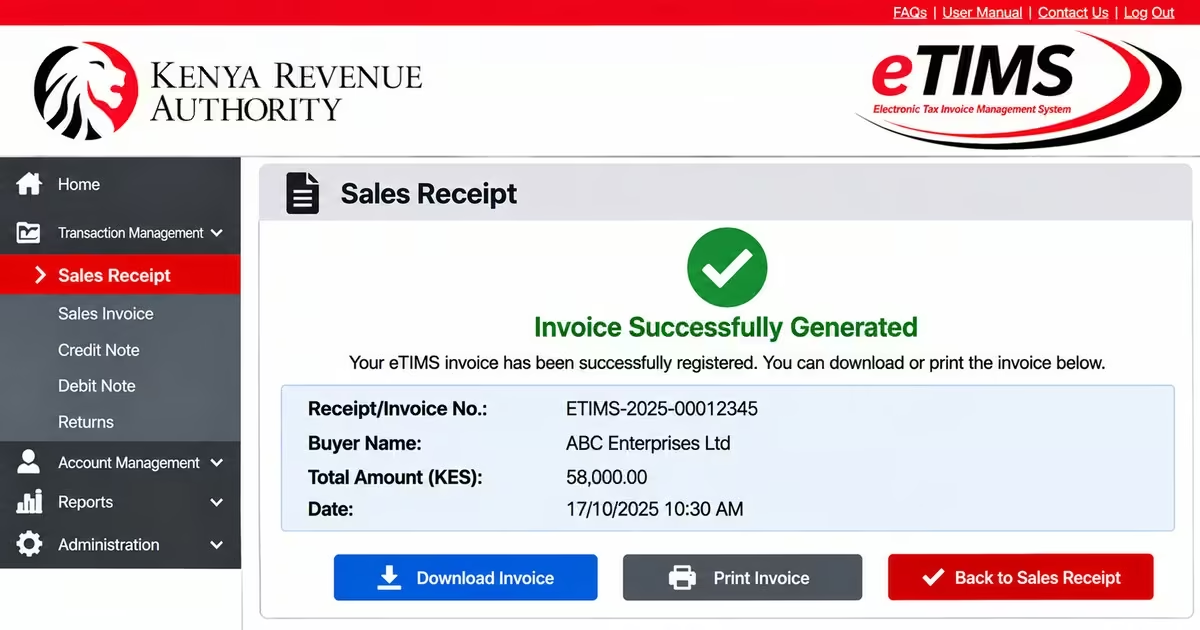
- Click Save.
- Confirm when the system asks whether you want to register the sale.
- The system will generate a unique Receipt/Invoice number and QR code.
- Click the Receipt number to view and download the official eTIMS invoice.
Read Also: How to Use the KRA Shuru WhatsApp Chatbot (2026): A Step-by-Step Guide for Kenyan Taxpayers
How to Generate an eTIMS Invoice Using the Mobile App (eTIMS Lite / eTIMS Non-VAT)
The eTIMS mobile app is a convenient option for small businesses and non-VAT-registered taxpayers who need to issue electronic invoices using a smartphone. It is particularly useful for users who want to create and share invoices while working away from a computer or web browser.
- Open the eTIMS Lite app on Android or the eTIMS Non-VAT app on iOS and log in using your KRA PIN and password or OTP.
- Tap New Invoice or Create Invoice to start a new invoice.
- Enter the buyer’s details. For B2B transactions, provide the buyer’s KRA PIN. For B2C transactions, enter the customer’s name; the PIN is optional.
- Enter the goods or services, including the description, quantity, and unit price. Select the applicable tax type.
- Review the invoice details, including the total amount and applicable taxes, and correct any errors before submitting.
- Tap Generate or Create Invoice. The system will generate the eTIMS invoice with a control number and QR code.
- Download or share the invoice with the customer through an available option such as SMS, WhatsApp, or email.
Frequently Asked Questions on eTIMS Invoices
Is eTIMS Mandatory for All Businesses in Kenya?
Yes. KRA requires businesses operating in Kenya to onboard eTIMS and electronically generate and transmit tax invoices, subject to applicable exemptions. Since 1 January 2026, KRA has also been checking business expenses against electronic tax invoices and other relevant transaction information.
Can I Generate an eTIMS Invoice Without a Customer PIN?
Yes. You can issue an eTIMS invoice even if the customer does not provide a KRA PIN. However, for business-to-business transactions, entering the buyer’s correct PIN is important because it helps link the expense to the buyer and allows it to be considered during KRA’s validation process. For ordinary business-to-consumer transactions, the buyer’s PIN may not be required.
How Do I Check if My eTIMS Invoice is Valid?
You can verify an eTIMS invoice by scanning the QR code displayed on the invoice using a QR scanner. The code takes you to KRA’s verification service, where you can check the invoice details and status.
What Happens if I Issue a Manual Invoice Instead of an eTIMS Invoice?
A manual invoice issued for a transaction that must be invoiced through eTIMS may not meet KRA’s electronic invoicing requirements. This may affect the customer’s ability to support the expense for tax purposes and could expose the business to compliance action or penalties provided under tax law.
Can I Use Third-Party Invoicing Software With eTIMS?
Yes. Businesses can use third-party invoicing or accounting software if the solution is integrated with, or approved for, eTIMS requirements. These systems let businesses generate invoices through their existing accounting, e-commerce, or business management platforms while sending the required invoice information to KRA.
How Much Does eTIMS Cost?
KRA’s official eTIMS solutions are provided to taxpayers free of charge. However, businesses that choose third-party invoicing or accounting software may need to pay the software provider’s subscription and integration fees.
Read Also: How to File KRA Nil Returns Online via iTax for Students & Unemployed
Conclusion
Registering for eTIMS and generating electronic tax invoices are important parts of running a compliant business in Kenya. The Kenya Revenue Authority provides various eTIMS solutions, including reverse invoicing, system-to-system integration, eCitizen, USSD, the eTIMS app, and the official eTIMS website. You can easily choose the best solution for your business based on your business needs and size. But before you choose which one to use, you must meet the requirements to register on eTIMS before you can start generating invoices. Key requirements include a valid KRA PIN, your business details, a registered phone number, and an email. With these details, whether you are a small business owner, freelancer, or established company, you can complete on-boarding and generate invoices electronically for your customers.