Your home Wi-Fi network connects smartphones, laptops, smart TVs, CCTV cameras, and other devices to the internet. However, if your network isn’t properly secured, cybercriminals may exploit weak passwords, outdated router software, or insecure devices to gain access and expose your personal information. Therefore, protecting your network is an important part of staying safe online.
In Kenya, many households depend on home internet for everyday activities, such as accessing eCitizen services, making online payments, communicating with customers, and managing business operations. A security breach can expose private information, put connected devices at risk, or allow unauthorised users to use your internet connection.
You can improve your home network security by following a few practical cybersecurity best practices. These include securing your Wi-Fi router, using strong passwords, keeping connected devices updated, setting up a guest network, and recognising common online threats. This guide explains exactly that.
Why Secure Your Home Wi-Fi?
Securing your home Wi-Fi network helps protect your personal information, connected devices, and internet connection from unauthorised access. Here are the main risks of leaving your home Wi-Fi network unsecured:
- Unauthorised Access: People who use your Wi-Fi without permission may consume your available internet bandwidth, slow down your connection, and use your network for activities you have not approved.
- Data Theft: If attackers gain access to your devices or take advantage of insecure connections, they may steal sensitive information, such as banking details, usernames, passwords, and personal files.
- Malware Infections: A compromised router or vulnerable connected device may expose other devices on your network to malicious software, commonly known as malware. This software can steal information, damage files, or allow attackers to gain further access to your devices.
- Privacy Intrusion: Unauthorised access to poorly secured devices, such as smart cameras and other internet-connected equipment, may expose private information or allow someone to view activities inside your home.
- Unauthorised Device Access: Weak Wi-Fi security may make it easier for intruders to access shared files, printers, and other devices connected to your home network, depending on how those devices are configured.
Read Also: The Future of Public Wi-Fi: How Secure Are Your Connections?
Common Home Wi-Fi Security Threats and Risks
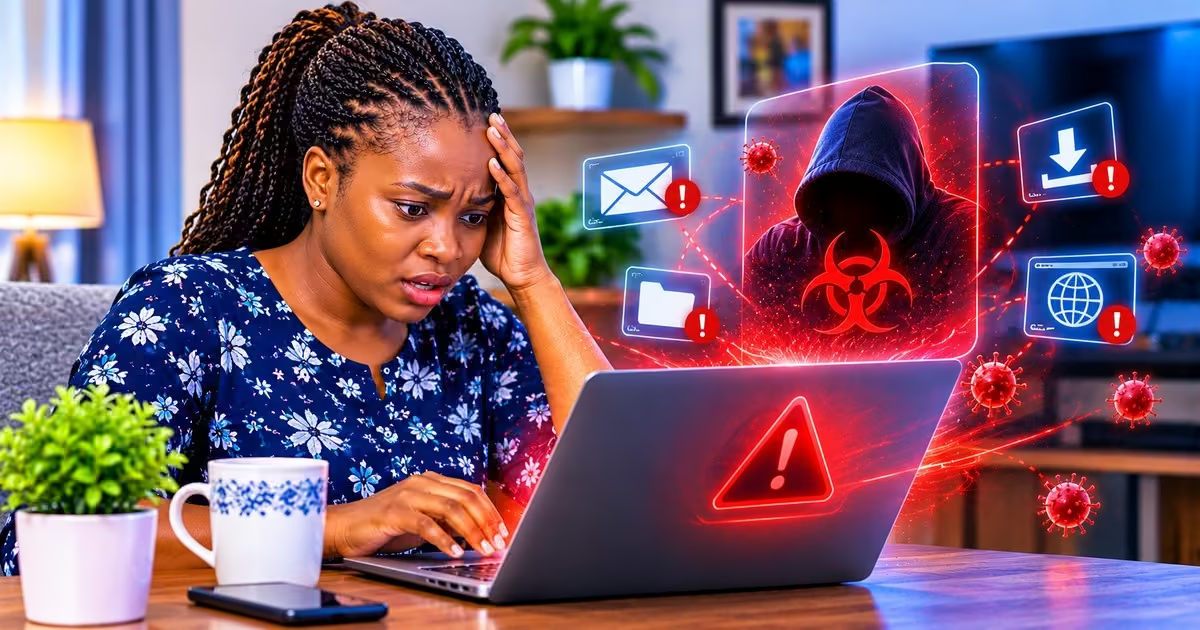
Your home Wi-Fi network can face several security threats that put your personal information and connected devices at risk. Understanding how these attacks work can help you recognise suspicious activity and take the right steps to protect your network.
1. Unauthorised Wi-Fi Access
Unauthorised Wi-Fi access occurs when someone connects to your home network without your permission. This may happen if your Wi-Fi password is weak, shared with too many people, or exposed to someone outside your household.
Once connected, an intruder may use up your internet bandwidth, access shared network resources, or attempt to exploit devices with security weaknesses. For instance, someone using your home Wi-Fi without permission could try to access a shared printer or other devices connected to your network.
2. Data Interception and Eavesdropping
Data interception occurs when an attacker tries to capture information being sent between devices and online services. This risk is higher on poorly secured wireless networks, especially when sensitive information is transmitted without proper encryption. Encryption protects information by making it unreadable to people not authorised to access it.
Security tips provided by the Federal Trade Commission highlight that “someone connected to an insecure Wi-Fi network may try to monitor network traffic to obtain sensitive information. Using modern Wi-Fi encryption and secure websites and applications helps reduce the risk of exposing personal information, including login details and financial information.”
3. Malware and Spyware Attacks
Malware is software designed to damage devices, steal information, or give attackers unauthorised access. Spyware is a type of malware that secretly monitors activities and collects information from an infected device.
These threats can reach your devices through harmful email attachments, fraudulent links, unsafe downloads, or compromised websites. Once a device is infected, the malware may steal personal files, monitor activity, or try to spread to other devices, depending on the infection type and your network’s security settings.
4. Man-in-the-Middle (MitM) Attacks
A man-in-the-middle attack occurs when a cybercriminal secretly intercepts or interferes with communication between two parties. The attacker may exploit a compromised router, an insecure network, or a fake Wi-Fi connection to position themselves between a user and an online service.
For example, a study by David (2025) highlights that “when accessing an online banking service, a user could be redirected to a fake website designed to collect login details. Although HTTPS encryption helps protect communication with legitimate websites, users should remain cautious when connecting to unfamiliar Wi-Fi networks and should not ignore unexpected security warnings.”
5. Rogue Wi-Fi Hotspots
A rogue Wi-Fi hotspot is an unauthorised wireless access point that may deceive users or expose their network traffic. Cybercriminals sometimes create fake Wi-Fi networks with familiar names to make them appear trustworthy.
For example, an attacker could create a hotspot using the name of a nearby business or internet provider, hoping that users will connect without checking whether the network is genuine. Once connected, users may encounter fake login pages, phishing attempts, or other attacks designed to steal personal information. Always verify unfamiliar Wi-Fi networks before connecting, especially when accessing sensitive accounts.
Read Also: How to Set Up Parental Controls on Wi-Fi Router: A Guide to Safer Internet Browsing
How to Secure Your Home Wi-Fi Router Step by Step
1. Change Your Default Router and Wi-Fi Passwords
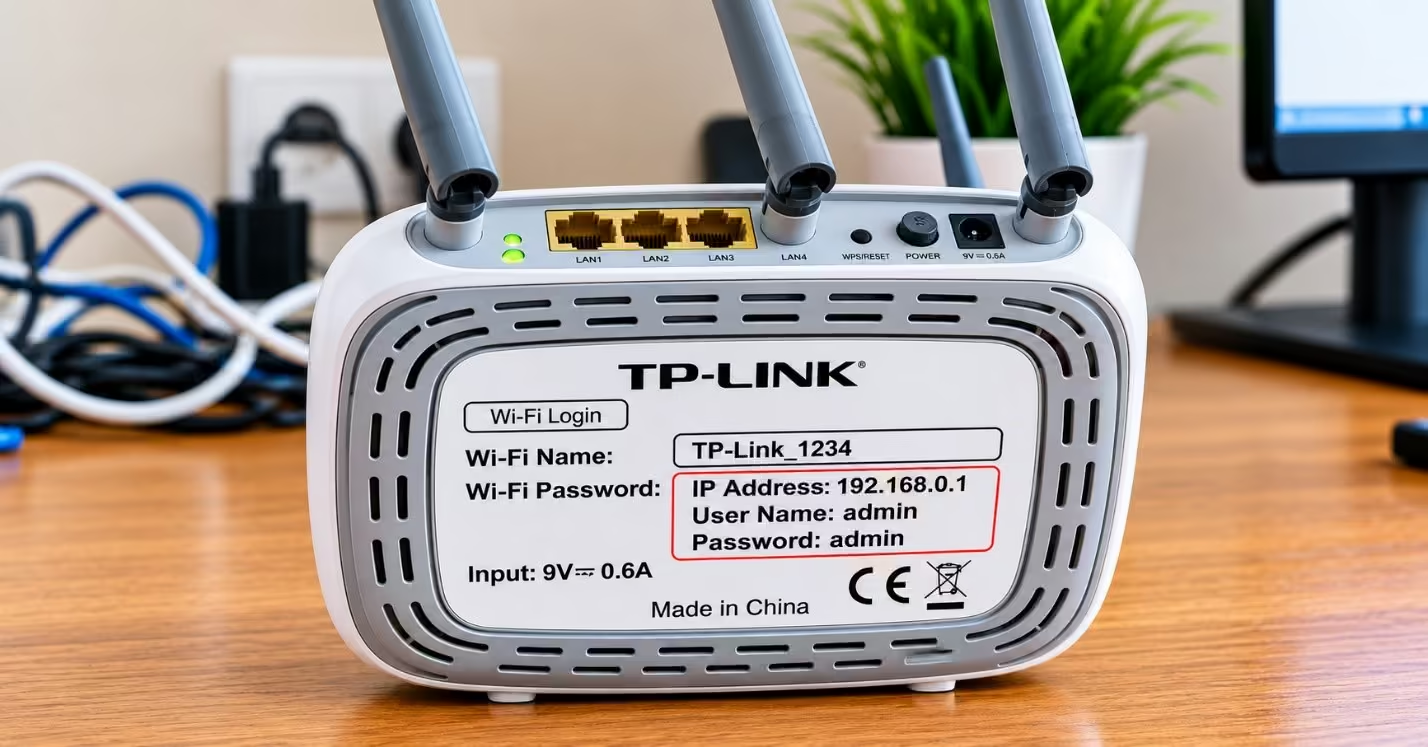
One of the most important steps in securing your home Wi-Fi router is changing its default passwords. Many routers come with factory-set administrator login details, which may be printed on a label or included in the user manual. If these details are weak or publicly known, attackers may use them to access your router settings and change its security settings.
Here are the passwords you should change:
- Router Administrator Password: This is a password that allows you to log in to the router as an admin to carry out configurations such as changing your username and password. Log in to your router’s administration page and change the default administrator password. Use a strong, unique password and avoid reusing passwords.
- Wi-Fi Password: Change the default Wi-Fi password to a strong, unique password or passphrase that is difficult to guess. Use WPA3 security if your router and connected devices support it. If WPA3 is unavailable, use WPA2-AES instead, and avoid outdated security protocols such as WEP.
- Smart Device Passwords: Change the default passwords on internet-connected devices, such as CCTV cameras, smart TVs, and other smart home equipment, wherever separate passwords are available. Unique passwords help prevent attackers who access one device from easily accessing others with the same login details.
2. Update Your Router Firmware Regularly
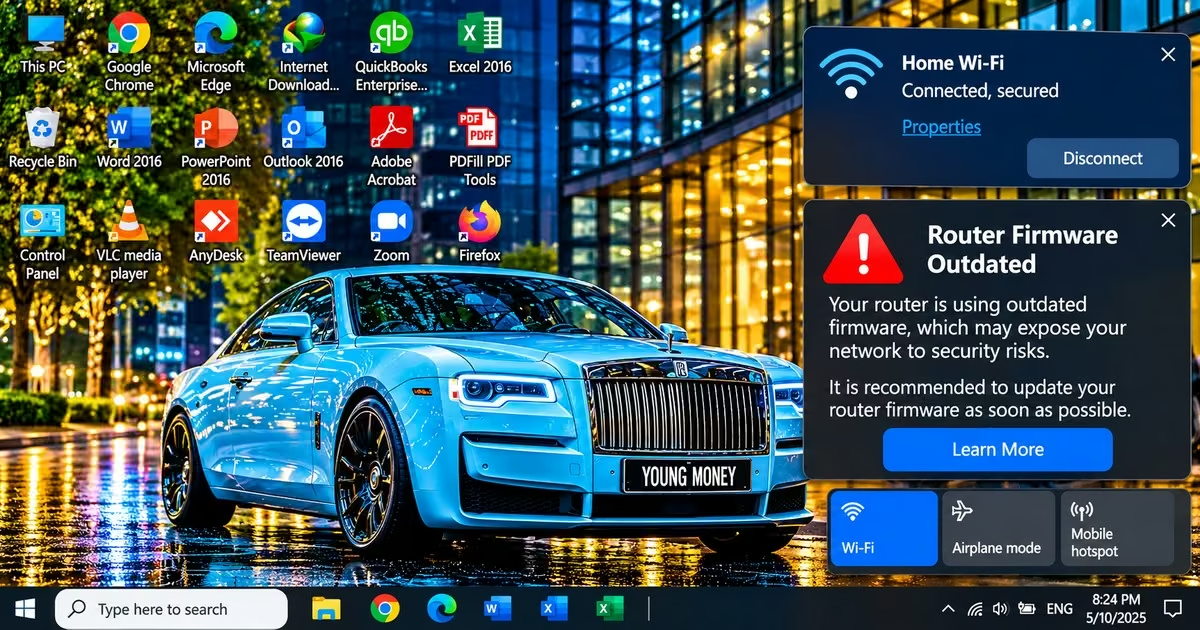
Router firmware is the software that controls how your Wi-Fi router works. Manufacturers release firmware updates to fix security weaknesses, improve performance, and correct software problems. If you keep outdated firmware, attackers may exploit known weaknesses to compromise your router or disrupt your home network.
To keep your router’s firmware up to date, follow these steps:
- Log in to your router: Connect your phone or computer to your home Wi-Fi and open the router’s administration page using the address provided on its label or in its user manual.
- Find the update settings: Look for a menu labelled Firmware Update, Software Update, System, or Device Management. The exact name depends on your router model.
- Enable automatic updates: If your router supports this feature, turn it on. For example, some Huawei routers allow users to enable automatic updates through the AI Life app or the router’s web management page.
- Check for updates manually: If automatic updates are unavailable, use the router’s update menu to check for new firmware. Depending on the model, TP-Link routers may support online updates through the Tether app or require manual installation.
Quick Tip: Download firmware only from the router manufacturer’s official website or use the router’s built-in update feature. Confirm the exact model and hardware version before installing an update, and do not switch off the router while the update is in progress.
3. Enable DNS Filtering on Your Home Router
DNS filtering is a security feature that helps block access to known malicious websites before your device connects to them. The Domain Name System (DNS) translates website names, such as those used for online banking, into IP addresses that devices use to find online services. By using a DNS service that checks website requests against lists of known threats, you can reduce the risk of visiting phishing websites or malware-related sites.
DNS filtering provides an additional layer of protection when browsing the internet, accessing eCitizen services, or managing online banking. You can configure a supported DNS service on your router so that its protection applies to devices connected to your home Wi-Fi. Here are three options to consider:
- Quad9 (9.9.9.9)- This DNS filtering blocks DNS requests to domains identified as malicious, including known phishing websites and sites used to distribute malware. It is a suitable option if you want basic protection against dangerous websites without paying for a subscription.
- Cloudflare Family (1.1.1.3)- This free DNS service blocks domains associated with malware and adult content.
- Clean Browsing Security Filter (185.228.168.10)– This DNS service also focuses on blocking domains associated with malware, phishing, and other security threats. CleanBrowsing also offers separate family-filtering options for households that want broader restrictions on the content users can access.
How to Set Up DNS Filtering on Your Router
- Open your router settings: Connect your phone or computer to your home Wi-Fi and log in to the router’s administration page.
- Find the DNS settings: Look under sections such as Internet, WAN, Network Settings, or DHCP, depending on your router model.
- Enter your preferred DNS addresses: Replace the existing DNS server addresses with the primary and secondary addresses provided by your chosen DNS service. For Quad9, for example, you can use 9.9.9.9 and 149.112.112.112.
- Save the changes: Apply the new settings and restart the router if required. Reconnect your devices and check that they can access the internet normally.
- Test the configuration: Visit your chosen DNS provider’s official website to confirm that the service is working as expected.
4. Monitor Connected Devices and Enable Security Alerts
Router logging records activities and events that occur on your home network, while security alerts notify you when certain events happen. These features can help you identify unusual activity, investigate connection problems, and detect possible attempts to access your network without permission. These monitoring features depend on your router model, so some routers may not have them.
If your router supports logging and alerts, you can monitor the following events:
- Failed Login Attempts: It records the unsuccessful attempts to access your router’s administration page. This indicates someone is trying to guess your password.
- New Devices Connecting: Some routers display a list of connected devices or send notifications when a new device joins the network. Check this list regularly to identify unfamiliar phones, laptops, or other devices.
- Firewall-Blocked Connections: Router logs may record connections blocked by the built-in firewall. Reviewing these records can help you understand whether the router is blocking potentially unwanted network traffic.
- Suspicious Outbound Connections: Advanced routers and security systems can flag connections to known malicious IP addresses or domains. This helps to identify infected devices attempting to communicate with suspicious servers, although basic home routers may not offer this feature.
5. Set Up a VPN on Your Wi-Fi Router
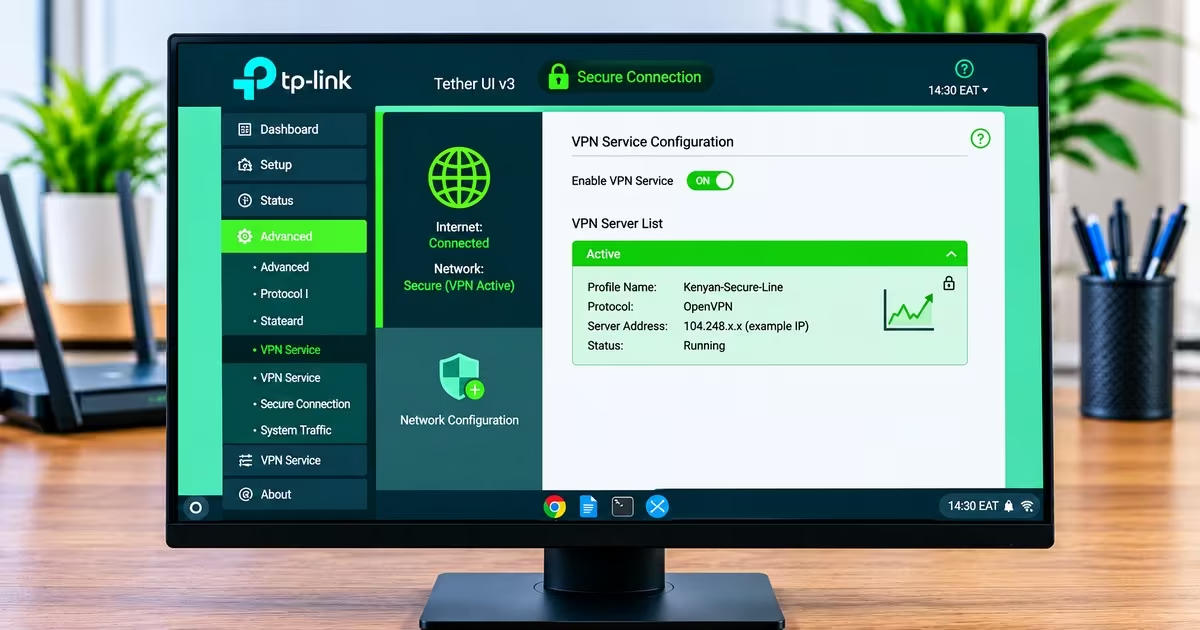
A Virtual Private Network (VPN) creates an encrypted connection between your network and a VPN server. This helps protect your internet traffic from easy monitoring by third parties, including your internet service provider (ISP). Although many people install VPN applications on individual phones and computers, configuring a VPN on a compatible router can extend this protection to multiple devices connected to your home Wi-Fi.
This can help Kenyan households that handle sensitive work information, access business systems remotely, or use smart devices that don’t support VPN apps. However, a router-level VPN does not replace Wi-Fi security, antivirus protection, or safe browsing practices.
6. Enable Your Router’s Built-In Firewall
Most home routers include a built-in firewall that monitors network traffic and blocks connections that do not meet its security rules. It helps protect your home network from unauthorised access and certain external attacks. However, a firewall cannot block every cyber threat, so use it alongside other security measures.
To check whether your router’s firewall is enabled, log in to its administration page and look for settings labelled Firewall, Security, or Advanced Security. If the firewall is disabled, enable it and save your changes. The exact steps depend on your router model and internet service provider.
Quick tip: Avoid turning off your router’s firewall unless you have a specific technical reason and understand the security risks. If your internet provider manages your router settings, contact its technical support team for assistance.
Read Also: The Most Common Causes of Slow Wi-Fi Connection
Conclusion
Securing your home Wi-Fi network in Kenya is an important step towards protecting your personal information, connected devices, and online activities from cyber threats. If your network is unsecured, you are exposed to cyber threats such as malware attacks, data interception, unauthorised access to your Wi-Fi, man-in-the-middle attacks, and rogue Wi-Fi hotspots. You can reduce the risk of unauthorised access and other security problems by changing default passwords, updating your router’s firmware, enabling DNS filtering and firewall protection, and monitoring network activity.