
Your child may ask for a smartphone to watch YouTube, join a school WhatsApp group, play games or stay in touch with friends. You may agree, but another question soon comes up: how do you know what they are doing on the phone when you are not watching? Social media, online games, websites, and messaging apps may expose children to content and interactions parents may not always know about.
This is where parental control apps can help. Instead of constantly checking your child’s phone, these tools let you set daily screen-time limits, block unsuitable websites, restrict certain apps, monitor activity, and, with some services, track your child’s location.
In this article, we will review 5 parental control apps:
- Top 5 Parental Control Apps for Android and iPhone
- I. Google Family Link
- II. Qustodio
- III. Kaspersky Safe Kids
- IV. Norton Family
- V. Microsoft Family Safety
- How to Set Up a Parental Control Apps on Your Child's Phone (Step-by-Step)
- Conclusion
Top 5 Parental Control Apps for Android and iPhone
With several parental control tools available today, Parents have different options for managing their children’s smartphone use. Below are some of the apps you can choose from:
I. Google Family Link
Google Family Link is a free parental control tool from Google designed to help parents guide and manage their children’s use of digital devices. It gives parents greater oversight of their child’s digital activities while supporting safer, more responsible device use.
Key Features of Google Family Link
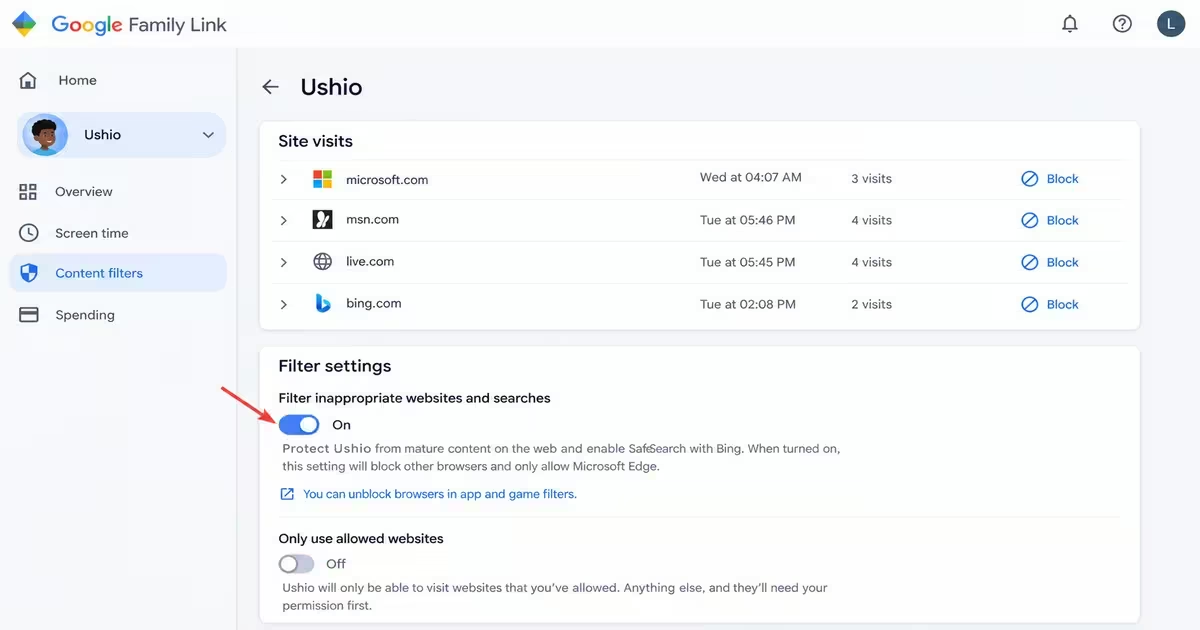
Google Family Link provides the main parental controls parents need to manage a child’s device; the following are the key features:
- Screen Time Management – You can set daily usage limits, restrict individual apps, schedule bedtime, and use School Time mode.
- App Controls – You can approve or block app installations and manage in-app purchases.
- Location Tracking – View the child’s device location and set family locations with arrival and departure notifications.
- Web Protection – Enables SafeSearch, restricts explicit content in Chrome, and blocks specific websites.
- Contact Controls – can help you manage which contacts a child can call or message, where supported.
Google Family Link Pricing
Google Family Link is free.
Drawbacks & Limitations of Google Family Link
a) Limited Support for Children’s iPhones, iPads, Windows and Macs
Google Family Link is mainly designed to supervise children’s Android and ChromeOS devices. Children using iPhones, iPads, Windows PCs or Macs cannot receive the same level of supervision.
b) No Monitoring of Texts, Calls or Social Media
Family Link does not monitor children’s text messages, phone calls or private social media conversations. This is a major limitation for parents who want detailed communication monitoring.
c) Basic Web Filtering
Family Link’s web filtering is mainly focused on Chrome and Google Search. This provides less comprehensive web monitoring than some dedicated parental control apps.
d) Supervision Changes When Children Reach the Applicable Age
Google allows children to take control of their Google Account when they reach the applicable age in their country. Safety Detectives highlights that this can significantly reduce parental control, so parents should check the age that applies in their country.
Read Also: How to Set Up Parental Controls on Wi-Fi Router: A Guide to Safer Internet Browsing
II. Qustodio
Qustodio is a parental control app designed for parents who want more detailed monitoring and control than basic built-in phone tools provide. It works on Android, iPhone and iPad, Windows, Mac, and Chromebook.
Key Features of Qustodio
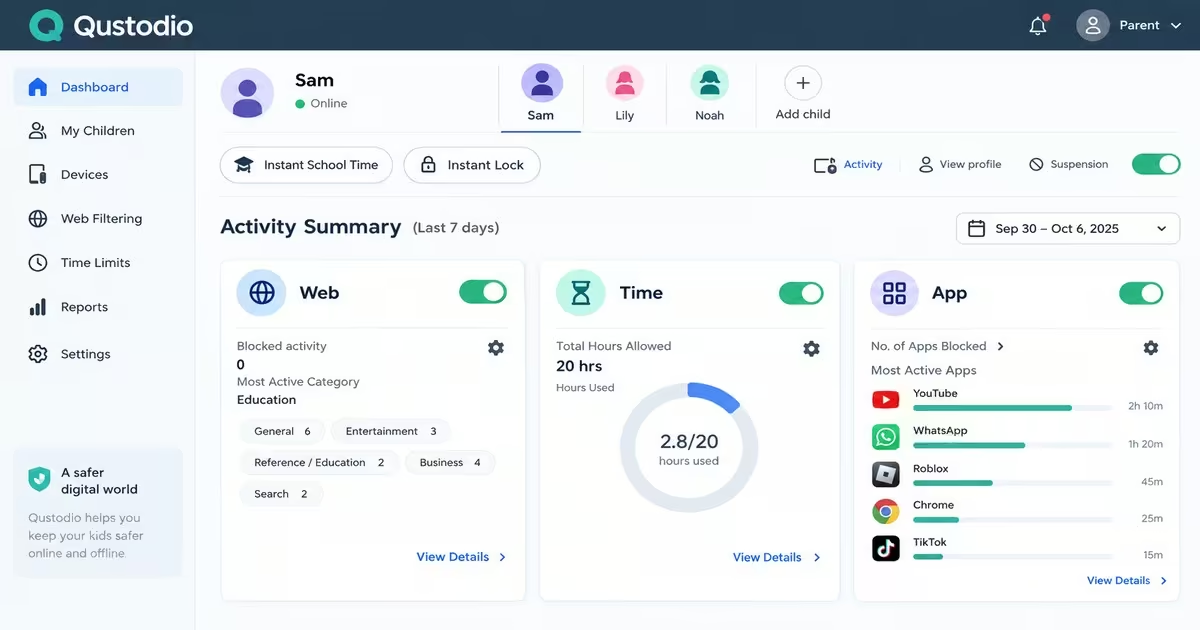
a) Content Filtering
Qustodio lets parents block websites, apps and games by category. It provides more than 25 web-filtering categories, including gambling, mature content and pornography. Parents can also block specific websites or allow trusted educational sites. Qustodio can notify the parent by email when a child tries to access a blocked website.
b) Activity Monitoring
The real-time dashboard is central to the app. Parents can view an activity timeline, browsing history, YouTube activity and screen time from their devices. The timeline can also be filtered to focus on potentially concerning activity. Qustodio provides information about the apps children use and may suggest safer, more age-appropriate alternatives, along with conversation starters to help parents discuss online activities with their children.
c) Screen Time Limits and Routines
The feature lets parents block certain websites and apps, and limit screen time during activities such as studying, gaming, or sleeping. Parents can also use a single button to pause internet access on the child’s device when they need to step in quickly.
d) YouTube Controls
Qustodio lets parents block or limit YouTube use and see what their children watch and search for.
e) Location Tracking
These features let parents see the child’s location and create areas that trigger alerts when the child enters or leaves them.
f) Call and Text Monitoring and the Panic Button (Android only)
Qustodio’s call and text monitoring is an unusual feature because many other parental control apps no longer offer it. According to Qustodio, these features are available only on Android. The panic button is also Android-only and allows a child to send an emergency alert to trusted contacts.
g) Anti-Tampering
The app is designed to make it more difficult for children to remove or turn off the controls. On Android, uninstalling Qustodio requires the parent’s password.
Qustodio Plans and Pricing
| PLAN | PRICE | DEVICES | KEY POINTS |
| Free | $ 0 | 1 | Basic protection features |
| Basic | $ 59.95 per year/ $ per month | Up to 5 devices | Core safety feature; care plan added for $ 12.99 |
| Complete | $104.95 per year / about $8.74 per month. | Unlimited devices | Advanced features with Care Plus included for free. |
Drawbacks & Limitations of Qustodio
- Limited Control on iOS – some monitoring and app-control features are more limited on iPhones and iPads. Some features, including call and message monitoring, also have additional requirements on iOS.
- Location Tracking is Not Always Perfectly Accurate – According to Tom’s Guide, Qustodio’s location tracking is useful but not always completely accurate. Parents should therefore treat location information as a guide rather than assuming it will always show the child’s exact location.
- Some Monitoring Features Have Limitations – Qustodio does not monitor every social platform or type of communication. For example, it doesn’t support Facebook chat. At the same time, call and SMS monitoring is mainly available on Android, limiting monitoring on some devices.
III. Kaspersky Safe Kids
Kaspersky Safe Kids is a parental control solution designed to help parents supervise and guide their children’s use of digital devices.
Key Features of Kaspersky Safe Kids
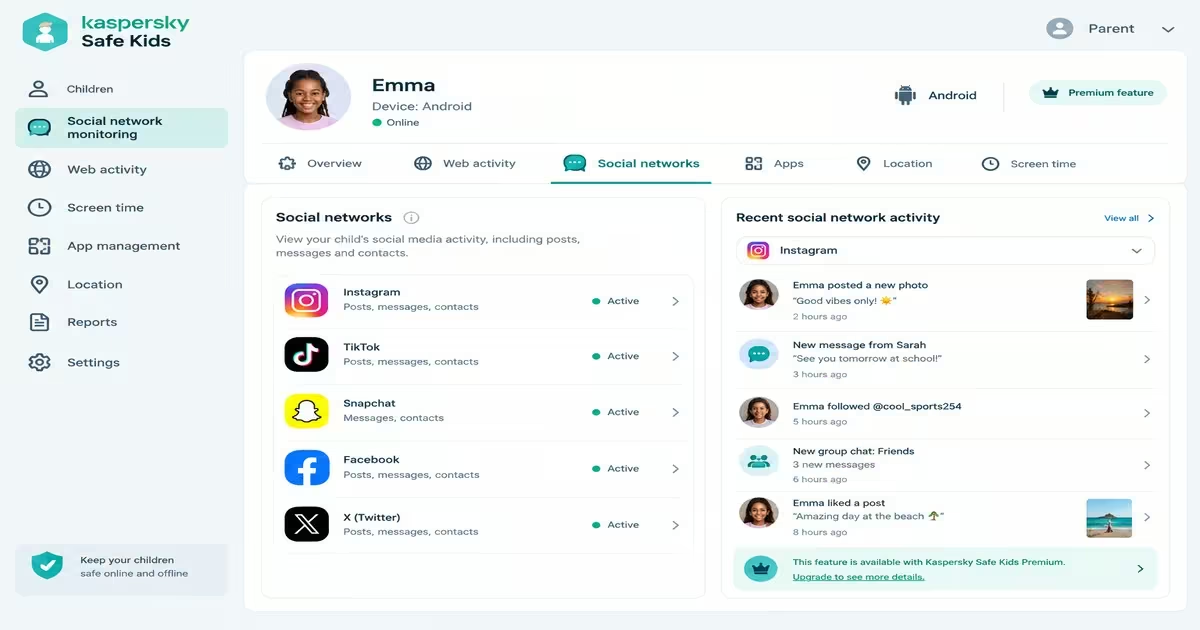
- Web filtering and Safe Search – Parents can hide adult content from search results, block specific websites or categories such as gambling, and see which websites their children have visited. Safe Search for YouTube is also available to help block harmful YouTube search requests.
- Screen Time Management – Parents can set limits on how long children can use their devices. Weekly schedules, time limits for individual apps and screen-time reports are available as premium features.
- App Control – Parents can block specific apps or entire app categories. This feature is available on the free version.
- GPS Tracking – An interactive map allows parents to view the locations of their children’s devices in one place. Parents can also receive alerts if a child leaves a pre-agreed safe area.
- Social Network Monitoring – Parents can get information about their children’s social media posts and the people they communicate with. This is a premium feature.
Kaspersky Safe Kids Pricing
| PLAN | PRICE | WHAT YOU GET |
| Free | KES 0 | Basic protection features |
| Kaspersky Safe Kids (Premium) | KES 2000 – 4000 | Full parental controls like GPS tracking, app blocks and many features |
| Kaspersky premium (total security) | KES 4000 – 5500(depending on the number of devices) | Full security suite and Safe Kids included free for one year |
Drawbacks & Limitations of Kaspersky Safe Kids
- Very Limited Social Media and Message Monitoring – This is one of its main limitations. Kaspersky Safe Kids provides limited social media monitoring and does not monitor text messages or private conversations.
- Limited Features on iPhones and iPads – The iOS version has fewer parental control features than the Android version. For instance, features such as app controls and screen-time scheduling are more restricted on iOS.
- Limited Location and Emergency Features – Location tracking does not provide a history of a child’s previous locations. The service also lacks a panic button.
- Some Useful Features Require Premium – Features such as screen-time scheduling, GPS location, geofencing and real-time alerts require a Premium subscription. This means the free version provides fewer controls for parents who need more advanced monitoring.
IV. Norton Family
Norton Family is a dedicated parental control service from Gen Digital. It helps parents monitor their children’s online activities and set healthy limits on device use.
Key Features of Norton Family
a) Web Filtering and Supervision
Parents can completely block unsuitable websites or show a warning that lets the child continue. Parents also receive an email alert when a child tries to visit a blocked website and can view reports showing visited sites.
b) Search Supervision
Parents can see the words and phrases their children search for online. This can help parents understand their children’s interests and decide whether to adjust blocked content or discuss certain topics with them.
c) Screen Time Management
Parents can create a weekly schedule that controls when and for how long each child can use their devices. They can also lock a device immediately when it is time for a break and receive regular reports showing how much time the child spends on their devices.
d) App Supervision (Android)
Parents can see the apps their children have downloaded on Android devices and choose which apps they can use.
e) Location Tracking
Parents can view the location of their child’s Android or iOS device on a map, including up to 30 days of location history. They can also receive alerts when a child arrives at or leaves approved places, known as Favorite Locations.
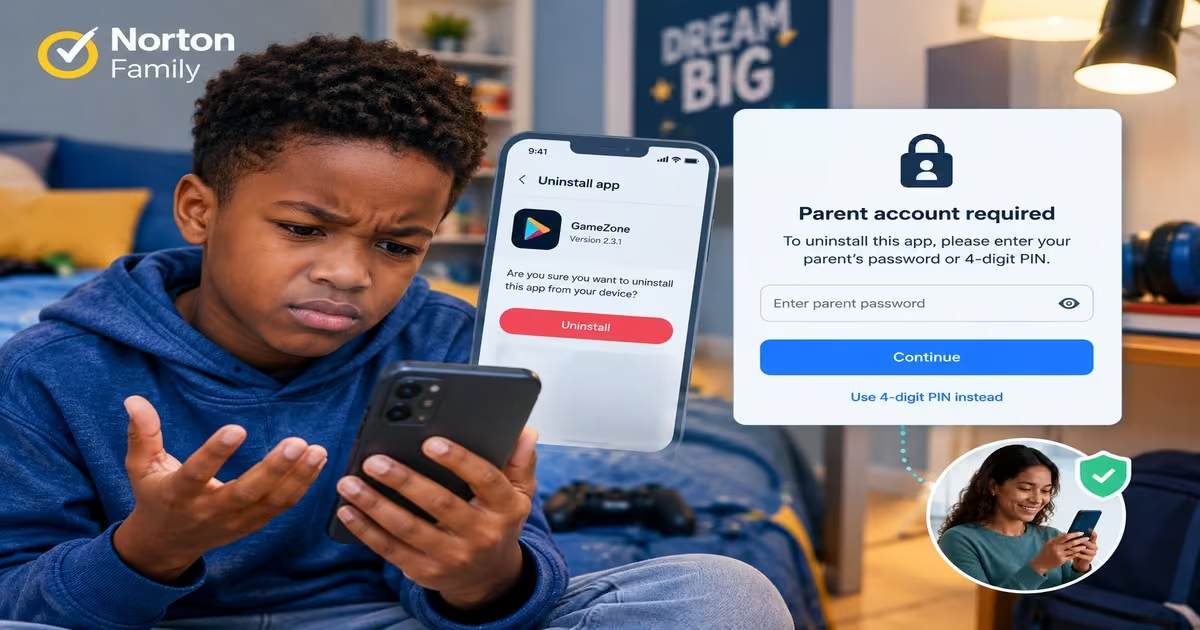
f) Tamper Protection
According to Stuart Guide on Norton Family, “uninstalling the child’s app requires the parent’s account login. The parent app or a 4-digit PIN can also be used to unlock a device that has been locked.”
Norton Family Pricing & Free Trial
Norton Family has one paid plan, Norton Family Premier, priced at $49.99 for the first year and covering unlimited children and devices. Norton offers no free version, but it includes a 30-day free trial and a 60-day money-back guarantee on annual plans. Renewal prices may vary, so check Norton’s website for the latest rates.
Drawbacks & Limitations of Norton Family
- No Monitoring of Messages or Chats – Norton Family does not monitor text messages, direct messages or chats within social media apps.
- No Support for MacOS or Chromebooks – Norton Family does not support macOS or Chromebooks. This can limit families using Apple computers or school-issued Chromebooks.
- Limited Features on iPhones and iPads – As WizCase notes, Norton Family provides fewer supervision features on iOS than on Android. Parents using iPhones or iPads may therefore need to rely on Apple’s built-in Screen Time controls for additional restrictions.
- Mobile Web Filtering Depends on Norton’s Browser – Norton Family’s web filtering on mobile devices works through the Norton Family browser. This means parents may need to restrict other browsers to prevent children from bypassing the web filter.
- Location Features are Limited – location supervision is not available in all countries. Parents should therefore check whether location supervision is supported in their country before relying on this feature.
V. Microsoft Family Safety
Microsoft Family Safety is a parental control tool from Microsoft designed to help parents guide and supervise how children use their digital devices.
Key Features of Microsoft Family Safety
a) Screen Time Management
Parents can set screen-time limits for apps and games. Children can request additional time, and parents receive a notification that allows them to approve or decline the request. Parents can also view activity summaries showing screen time and online activity.
b) Content Filters
Parents can block inappropriate apps and games and restrict websites and search terms. Web and search filters work only with Microsoft Edge on Windows and Android. Parents are also notified when a child tries to download an app or game with a higher age rating from the Microsoft stores.
c) Activity Reporting
The app provides information about how children spend time online, including the apps and websites they use. Microsoft says these reports are meant to help parents start conversations about screen time and online content, rather than only restricting what children can access.
Microsoft Family Safety Pricing
Microsoft Family Safety is free.
Drawbacks & Limitations of Microsoft Family Safety
- Web Filtering is Limited to Microsoft Edge – Web filtering as a key limitation, as it only works on Microsoft Edge, thus causing inconvenience for families that use other browsers
- No Social Media Monitoring – As TechRadar highlights, Microsoft Family Safety does not monitor children’s social media activity or private messages. Parents therefore cannot see what their children post or whom they communicate with on platforms such as Instagram, Snapchat and TikTok.
- Limited Features on iPhone and iPad – Microsoft Family Safety offers fewer features on iPhone and iPad than on Windows, Xbox and Android.
- Some Android Features May Not Work Consistently – Some screen-time and app-blocking features may not work reliably on Android. The review also notes that Family Safety does not provide categories for blocking apps, games and websites, which can make restrictions less flexible.
- Location Tracking and Drive Safety are no Longer Available – Microsoft has discontinued the location tracking and Drive Safety features in Family Safety.
How to Set Up a Parental Control Apps on Your Child’s Phone (Step-by-Step)
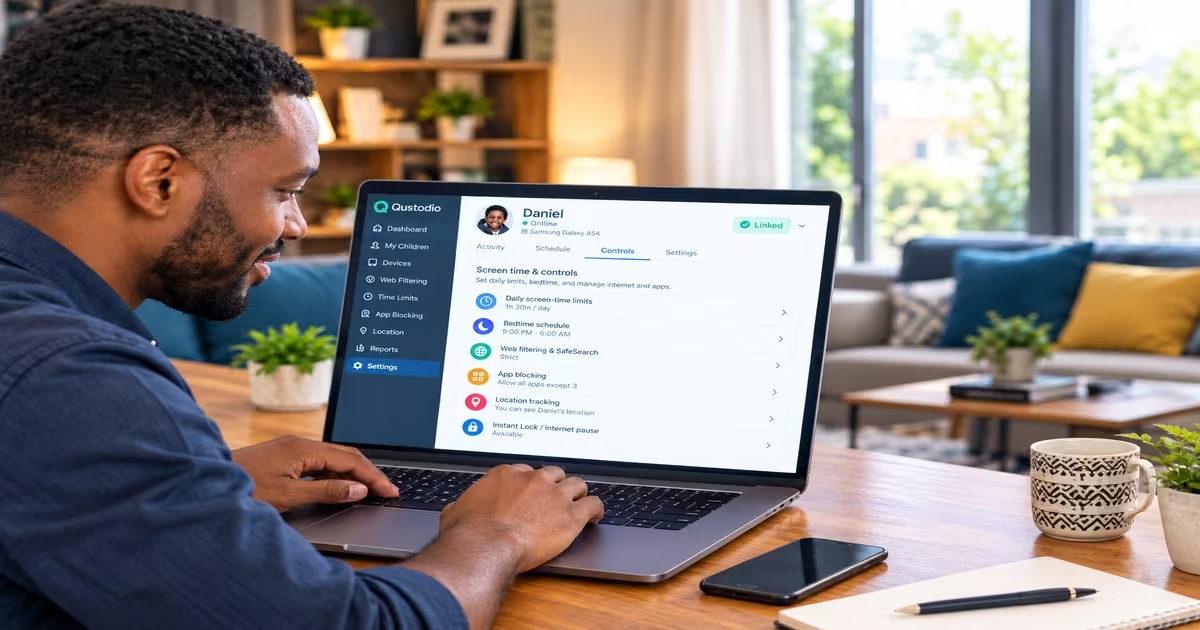
Most parental control apps follow a similar basic setup process. Once you understand these steps, setting up any popular parental control tool becomes much easier.
Step 1: Create Your Parent Account
- Download the official parent app from the Google Play Store or Apple App Store.
- Sign up using your email address and create a strong password.
- Complete any required verification, such as confirming your email address or phone number.
Must Read: This account acts as the control centre. You will use it to manage rules, view activity reports and lock the child’s device when needed.
Step 2: Set Up Your Child’s Profile
- In the parent app or website, add a new child.
- Enter the child’s name and age or date of birth.
- Choose an age-based restriction level if the app provides one. Younger children usually have stricter filters by default.
- You can create multiple child profiles if you have more than one child.
Step 3: Install the App on Your Child’s Device
- On the child’s phone, open the Play Store (Android) or the App Store (iPhone).
- Search for the same parental control app. Some services use a separate Kids or Child version.
- Install and open the app.
- Select the option labelled Child device, Child mode or Protect this device.
Step 4: Pair the Child’s Device to the Parent Dashboard
- Sign in on the child’s phone using the same parent account you created in Step 1.
- Select the correct child profile when prompted.
- Give the device a clear name, such as “Brian’s Phone” or “Aisha’s Tablet”.
- Some apps provide a code or QR code that you can use with the parent phone to complete the connection.
Step 5: Grant the Required Permissions
This step is important because the app needs certain permissions for its controls to work properly.
- Allow the permissions the app requests. Common permissions include Device Administrator, Accessibility Service, Usage, VPN Configuration, Location permissions, and Notifications permissions.
- On iPhone, you may also need to go to Settings → General → VPN & Device Management and trust the configuration profile.
Step 6: Configure Screen-Time Rules & Web Filter
Once the child’s device appears in your parent dashboard, configure the basic controls and more based on the type of parental control you want. Some of the basic controls include:
- Daily screen-time limits and bedtime schedules
- Web filtering and SafeSearch
- Block or allow specific apps
- Location tracking and safe places such as home or school
- Instant Lock or internet pause, if available
You can adjust these rules later as your child’s needs change.
Read Also: How To Be Safe When Using Wi-Fi: Understanding the Risks and How to Resolve Them
Conclusion
Choosing the right parental control app depends on your child’s device and the level of control you need. In the article above, I discussed five of the most commonly used parental control apps: Google Family Link, Qustodio, Kaspersky Safe Kids, Norton Family, and Microsoft Family Safety. These apps offer features like screen time monitoring, web filtering, app management, location tracking, and even social media monitoring, so you can monitor your child and control their phone. To set up your parental app, download it on both your phone and your child’s phone, create accounts for both parent and child, accept the permissions requested, and then link the phones. After that, you can configure specific features as per your preferences.