If you have ever applied for an internship or opened a student bank account, you have probably come across one common requirement: a KRA PIN. Many students assume a KRA PIN is only for employed people, but it’s an important identification number for a wide range of education, financial, and government-related processes across the country. Applying for a KRA PIN online through the iTax portal is a simple process that can be completed within a few minutes if you have the required information and proper guidance.
In this guide, I will take you through the step-by-step process of:
- Applying for a KRA PIN without obligation as a student
- Explaining the requirements you need to meet
- How to download your KRA certificate.
- How to change your password for the first time.
What is a KRA PIN?
A KRA PIN (Personal Identification Number) is a unique tax identification number issued by the Kenya Revenue Authority (KRA) to individuals and organizations, as noted by Julius (2026). It serves as your official tax identification number and helps the KRA monitor your tax records, obligations, and compliance status.
Beyond tax purposes, a KRA PIN is commonly required when applying for jobs, opening bank accounts, registering a business, buying or selling property, and accessing various government services, making it an important document for many transactions in Kenya.
What is a KRA PIN Without Obligation for Students?
A KRA PIN with no obligation refers to a KRA PIN that is registered with the Kenya Revenue Authority but does not have any active tax obligation attached to it. A tax obligation determines the type of tax that a person is expected to account for, such as Income Tax.
As of April 2026, the Kenya Revenue Authority announced that “if you register for a KRA PIN without obligation, you will not be required to file nil returns.” For instance, a university student who has obtained a KRA PIN but is not employed, running a business, or earning taxable income is supposed to have a KRA PIN with no obligation. In this situation, the person has a valid KRA PIN for identification and to access services that require a PIN, but is not required to file returns. Still, you need to understand that if the student’s circumstances change, such as getting a job or starting a business, you are required to register the appropriate tax obligation with KRA.
Read Also: How to File KRA Nil Returns Online via iTax for Students & Unemployed
Key Reasons Students Need a KRA PIN in Kenya
For students in Kenya, a KRA PIN is an important requirement that helps you access many opportunities in education, employment, and financial services. Below are some of the main reasons why students need a KRA PIN.
a) HELB Loans and Higher Education Support
The Higher Education Loans Board (HELB) may require your KRA PIN when applying for student loans or other financial support. It is also useful for guarantors involved in your application.
b) Opening a Bank Account
Many banks request a KRA PIN as part of their identification requirements when opening student or savings accounts. This helps verify your identity during financial transactions.
c) Internship and Attachment Applications
Most companies, organizations, and government institutions require a KRA PIN when applying for internships or industrial attachments. It is often part of the basic documents needed during the application process.
d) Employment Opportunities
When you finish school and start applying for jobs, employers will require your KRA PIN to register you in their payroll system and handle statutory deductions such as taxes.
Requirements for Student KRA PIN Application on iTax
Before starting your KRA PIN application on the iTax portal, prepare all required information in advance. The following is the information required.
a) Valid National ID Card
You must have a Kenyan National ID card, as your ID number and date of birth are used to verify your identity during registration.
b) Active Email Address
A working email address is required to receive important messages such as verification codes, login details, and your KRA PIN certificate after successful registration.
c) Working Phone Number
You need an active mobile phone number for communication purposes. You may use it for contact updates or verification during registration.
d) Physical Address
You are required to provide your current residential address. This includes details such as your county, town, estate, village, or street location.
e) Postal Address (P.O. Box)
You must also provide a valid postal address and postal code, which will be used in your official KRA records.
How to Apply for KRA PIN on iTax as a Student
Step 1 -Visit the KRA iTax Portal
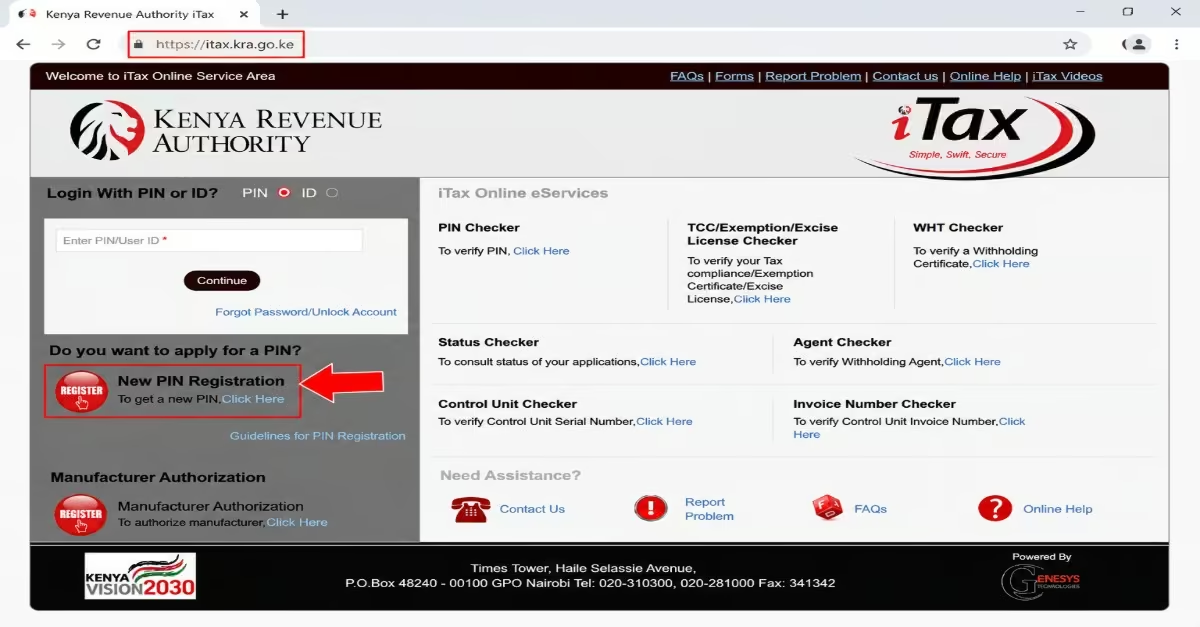
- Open your web browser, and go to the official KRA iTax portal. You will land on the iTax login/home page.
- Do not log in, since you do not have a PIN yet. Look for the option labelled “New PIN Registration” or “Register” on the home page and click on it.
Step 2 – Select Your Taxpayer Type and Mode of Registration
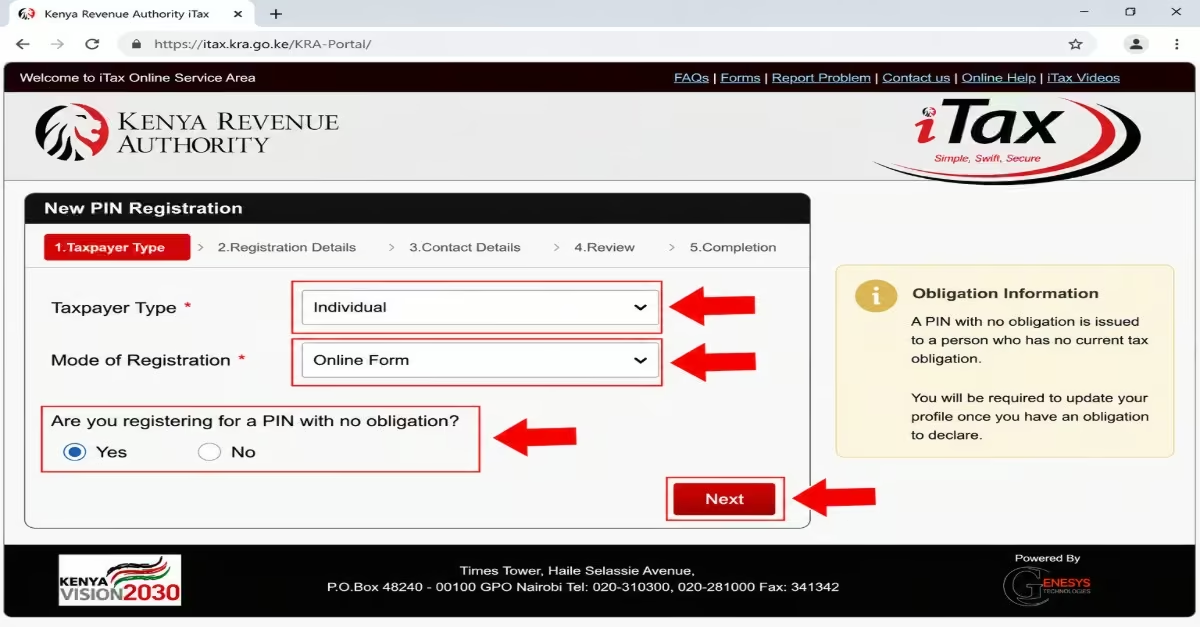
- A page with drop-down menus will appear on your screen.
- Under “Taxpayer Type,” select “Individual” from the drop-down menu.
- Under “Mode of Registration,” select “Online Form.”
- You will then see a question: “Are you registering for a PIN with no obligation?”
Must read: If you are a student with no income, select “Yes.”
- A pop-up window titled “Obligation Information” will appear on your screen. Read through the information carefully to understand what PIN Without Obligation means.
- After reading, close the pop-up and click “Next” to proceed.
- A second confirmation pop-up will appear asking you to confirm that you want to register for a PIN Without Obligation. Click “OK” to confirm.
Step 3 – Fill in the Registration Form
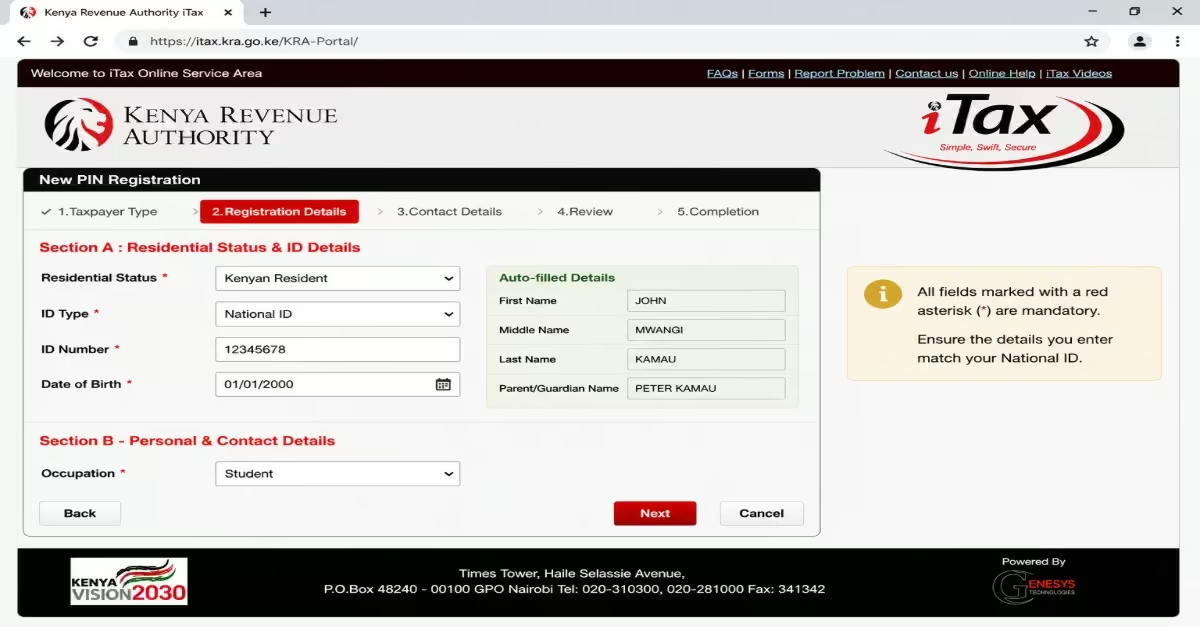
- The full registration form will now appear on your screen. You are required to fill in all fields marked with a red asterisk (*) as they are mandatory.
Section A: Residential Status & ID Details
- Select your residential status- for most Kenyan students, this will be “Kenyan Resident.”
- Enter your National ID Number.
- Enter your Date of Birth as it appears on your ID.
- Once you enter your ID number and date of birth, the system will automatically fill in some of your personal details, including your full name and parental information, pulled from government records.
- Double-check that all the auto-filled details are correct.
Section B – Personal & Contact Details
- Enter your occupation; for students, you can select or type “Student” or “None” depending on the available options.
- Enter your physical address; this includes your county, town, and street.
- Enter your postal address (P.O. Box number and postal code).
- Enter your mobile phone number in the correct format (e.g., 0712345678 or +254712345678).
- Enter your email address carefully; this is where your OTP and PIN certificate will be sent.
Step 4 – Verify Your Email Address with OTP
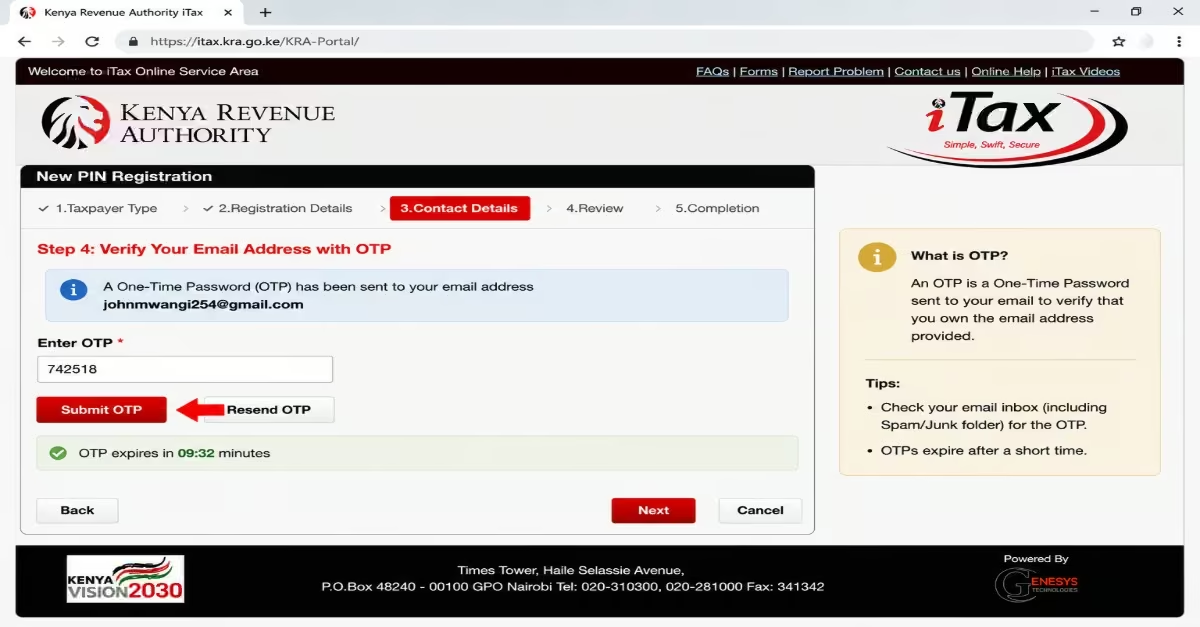
- After entering your email address, click the button labelled “Send OTP.”
- Check your email inbox; KRA will send you a One-Time Password (OTP) within a few seconds to a few minutes.
- If you do not see the email in your inbox, check your Spam or Junk folder.
- Copy or type the OTP into the field provided on the form.
- Click “Submit OTP” or “Verify” to confirm your email address
Tip: Make sure you complete this step quickly, as OTPs usually expire after a short time
Step 5 – Complete and Submit the Form
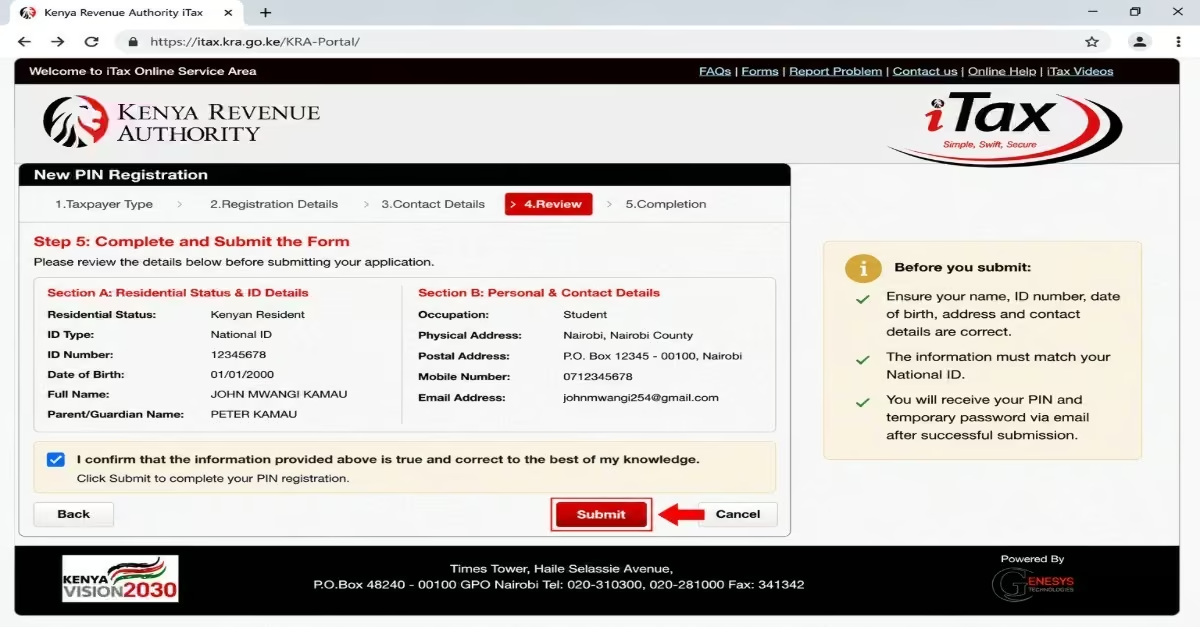
- After verifying your email, review all the details you have filled in on the registration form.
- Confirm that your name, ID number, date of birth, address, and contact details are all correct and consistent with what appears on your National ID.
- Once satisfied, click the “Submit” button at the bottom of the form.
- The system will process your application automatically.
Step 6 – Receive Your KRA PIN via Email
- After successful submission, KRA’s system will generate your PIN immediately.
- You will receive an email from KRA containing your KRA PIN, e.g., A012345678Z, and a temporary password for your new iTax account
- Go back to the iTax portal
- Log in using your KRA PIN as the username and the temporary password sent to your email.
- The system will prompt you to change your password to a new, secure one of your choices. Do this immediately.
How to Change Your iTax Password After First Login
When you register for a KRA PIN through the iTax portal, KRA provides a temporary password that lets you access your account for the first time. However, this password is temporary and meant only for initial access, so you should change it to a permanent password to keep your iTax account secure. Follow the procedure below to change your password.
- Visit the iTax portal – Go to the official KRA iTax portal and select the option to log in.
- Enter your login details – Enter your KRA PIN in the username field and type the temporary password sent to your email. Make sure you enter the details correctly.
- Change the temporary password – After logging in, the system will prompt you to change the temporary password. Enter the temporary password where required and create a new password of your choice.
- Create a strong password – Choose a password that is difficult for other people to guess. A good password can contain a combination of uppercase and lowercase letters, numbers, and special characters. Avoid using information such as your name or date of birth.
- Confirm the new password – Enter the new password again in the confirmation field to make sure both passwords match, then submit the change.
- Set a security question – If iTax asks you to provide a security question and answer, choose a question you can easily remember and provide an answer that only you are likely to know.
- Save your new password – Once the password has been successfully changed, keep it secure. You will use this new password whenever you need to access your iTax account, including when filing tax returns, updating your PIN details, or accessing other KRA services.
How to Download Your KRA PIN Certificate PDF
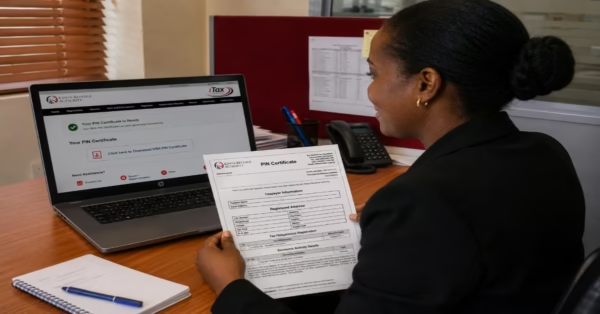
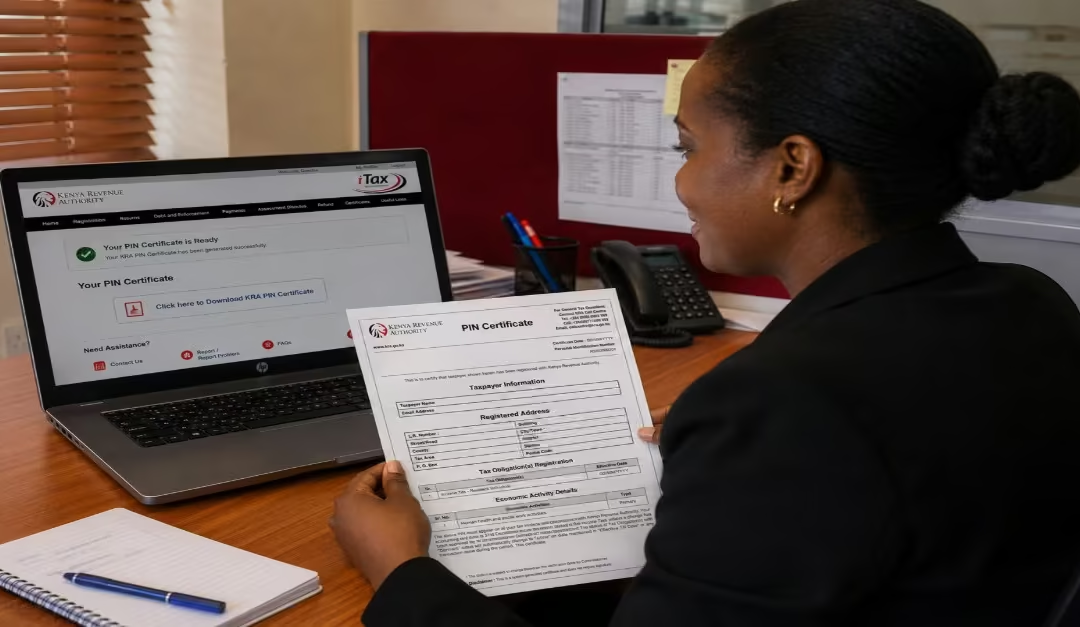
After a successful application for the KRA PIN, you need to download a KRA PIN certificate, which is the official document that you will use while applying for HELB, banks, and Job applications. Here is how to download it:
- Log in to iTax using your KRA PIN and password.
- Once on your dashboard, click on the “Registration” tab at the top of the page.
- From the drop-down menu, select “Reprint PIN Certificate.”
- A new page will appear under “Applicant Type”; select “Taxpayer.”
- Click the “Submit” button.
- Your KRA PIN Certificate will be generated as a PDF document.
- Click on “Click here to Download KRA PIN Certificate” to save the PDF to your phone or computer.
- Print a copy or save it in a safe location on your device for future use.
Frequently Asked Questions (FAQs)
Can I Apply for a KRA PIN Without a National ID?
No. A valid National ID is required to register. If you do not have one yet, apply for it at your nearest Huduma cent-re before starting the KRA PIN application.
Do I Need To File Tax Returns After Getting A Student KRA PIN?
No, not if you registered under the PIN Without Obligation (PWO) category. In this case, you are not required to file nil or any tax returns unless you start earning taxable income.
What if iTax is Slow or Not Working?
If the iTax portal is slow, try accessing it early in the morning (before 9 AM) when fewer people are online. You can also switch to a different browser to improve performance.
What if I Forget my iTax Password?
On the iTax login page, click on the “Forgot Password” option and follow the reset instructions. A new password will be sent to your registered email address.
Read Also: How to Use the KRA Shuru WhatsApp Chatbot (2026): A Step-by-Step Guide for Kenyan Taxpayers
Conclusion
Applying for a KRA PIN as a student is simple, as the whole process is done online through the iTax portal. To apply, you must have the required information, such as your identity card, postal address, postal code, an active email, and a working phone number. The application process is simple: access the iTax portal on your laptop, click Register a KRA PIN, fill out the online form with the requested information, verify your email and phone number, and then download your KRA certificate.